
What it is
This guide covers two connected parts of Trident: the register where you record security incidents, and the plans that say who does what when one turns out to be a breach.
An incident is any security event or suspicion: a lost phone, a phishing email someone clicked, a file sent to the wrong person, a break-in. It becomes a breach only if personal data was lost, stolen, seen by someone who should not see it, changed or destroyed. Every incident you record is assessed to decide which it is, and the record keeps the evidence for that decision.
In Trident the incidents are in the Compliance Hub, under Breach & Incident Register (the page itself is called Incident & Breach Register). How this works, beside the heading, opens How incidents and breaches work.
The plans are in Policies & Plans, under BC/DR Plans (the page is called BC/DR Plan). Trident creates two plans for you, both marked Default: a Breach response plan, which lists the response steps and who holds each role, and a Business continuity & disaster recovery plan, which you build with a guided questionnaire. BC/DR Plans is included on the Standard and Enterprise plans.
When to use it
- As soon as something goes wrong, or might have. Report it the same day, even if you are not sure personal data was involved. The register is where you decide that, with the facts in front of you.
- When you know enough to decide. Record whether personal data was compromised. If it was, confirm the breach so Trident starts tracking the deadlines.
- Before anything happens. Fill in the roles on your breach response plan and work through the BC/DR questionnaire, so that on the day everyone knows their part.
- When people or systems change. Update who holds each role, and review the plans.
Record only real incidents in the register. It has no test or practice mode, so do not use it to rehearse; a rehearsal belongs in a meeting, with the plan in front of you.
What to gather first
To report an incident, you need very little:
- A few words on what happened, for example "Laptop with customer files stolen from a car".
- When it was detected, as close to the hour as you can.
- Anything you already know: which systems or data assets are involved, what has been done so far, and who noticed it. If you received an email or message about it, you can paste it into the form.
To decide whether it is a breach, find out:
- Whether personal data was involved, whose and what kind.
- When you became reasonably sure that personal data was affected. This is the moment the deadlines count from, so record it honestly; it can be corrected later, with a reason.
For the breach response plan, have the names of the people who will lead: your incident lead, your DPO, the person responsible for IT or security, whoever speaks for the organisation, and a senior person who can make decisions.
Steps
-
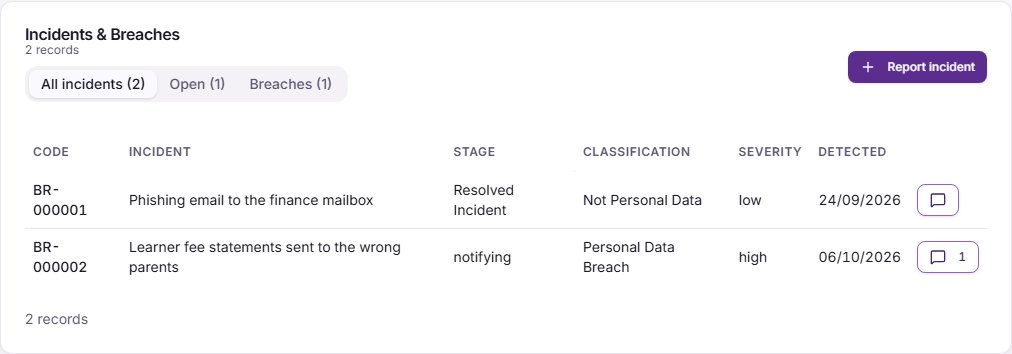
Open the register. Select Compliance Hub, then Breach & Incident Register. The list has three tabs: All incidents, Open and Breaches.
-
Report the incident. Select Report incident. A window called Report a security incident opens. Fill in What happened, in a few words and When was it detected?: these two are required. Add Details, Initial severity, Affected systems, Data assets involved and Your role in this incident if you know them. Select Capture & continue. Trident saves the incident and opens it.
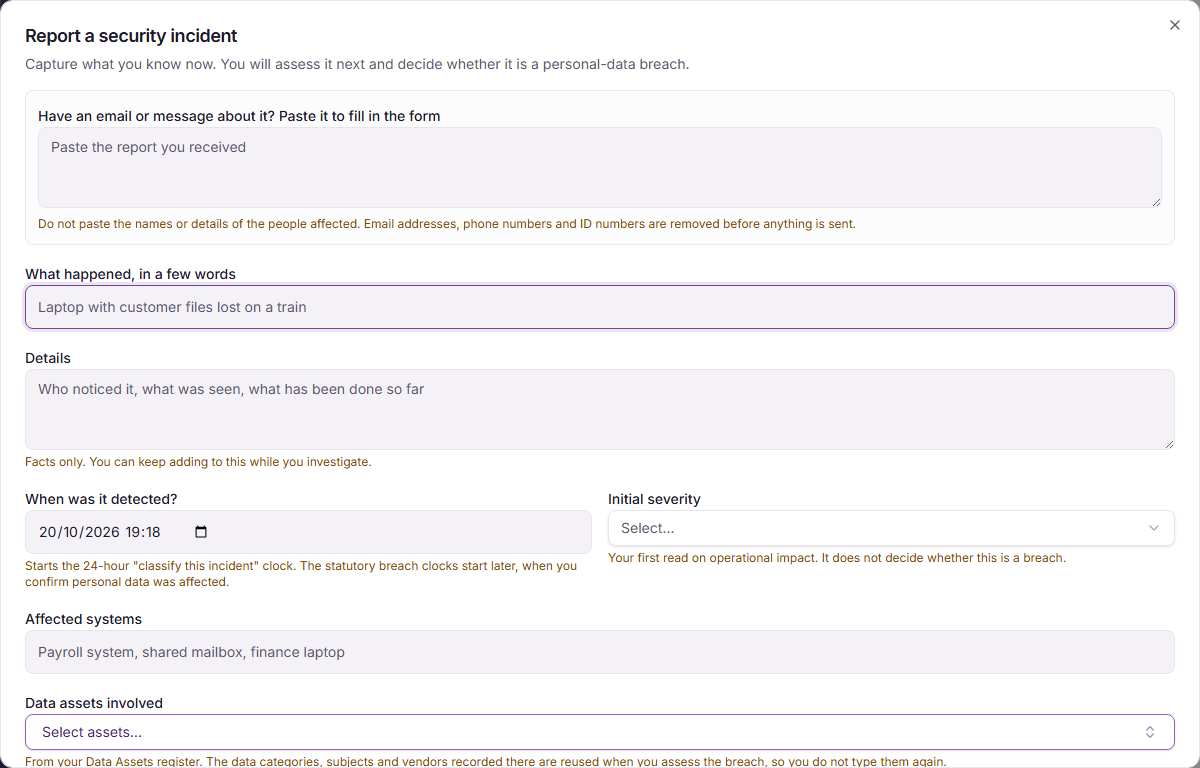
Reporting starts an internal 24-hour reminder to decide whether the incident is a breach. The breach deadlines start only when you confirm a breach, in step 4.
-
Work through the steps. Each incident has seven steps: Report, Assess & contain, Decide, Breach details, Risk, Notify and Manage & close. On Assess & contain, record what you did to stop the problem and recover, with notes as you go.
-
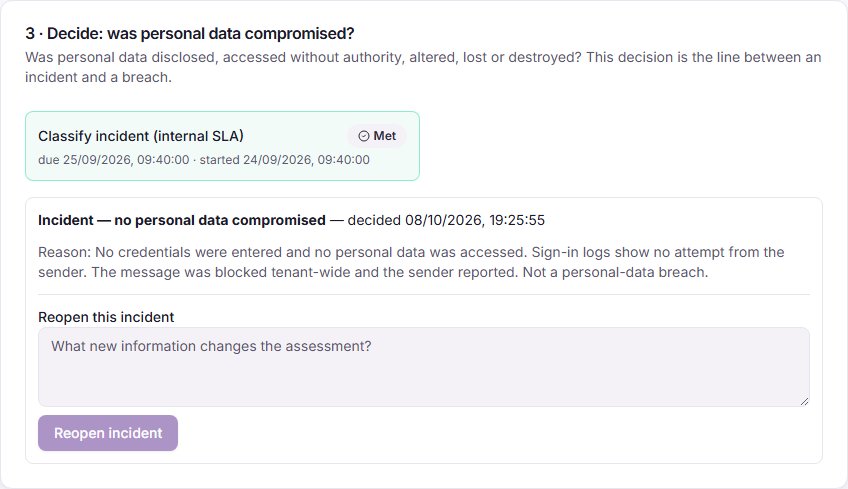
Decide. On Decide, answer the question: was personal data compromised?
- If not, select No personal data was compromised, write the reason under Why is this not a personal-data breach? and select Resolve as an incident. The incident stays on the register, and you can select Reopen incident if new evidence appears.
- If it was, select Yes, personal data was compromised, fill in how, which security property failed and When did you become aware?, then select Confirm breach and start the clocks. Once you confirm a breach in Trident, it starts a 24-hour deadline to notify POTRAZ and tracks it for you.
-
Complete the breach steps. After a breach is confirmed, Breach details and Risk record what was affected and how serious it is, and Notify prepares the POTRAZ notification form and a draft email for you to send yourself: Trident does not send it. Manage & close holds the follow-up actions and the final report. The steps of your breach response plan become tasks on the breach.
-
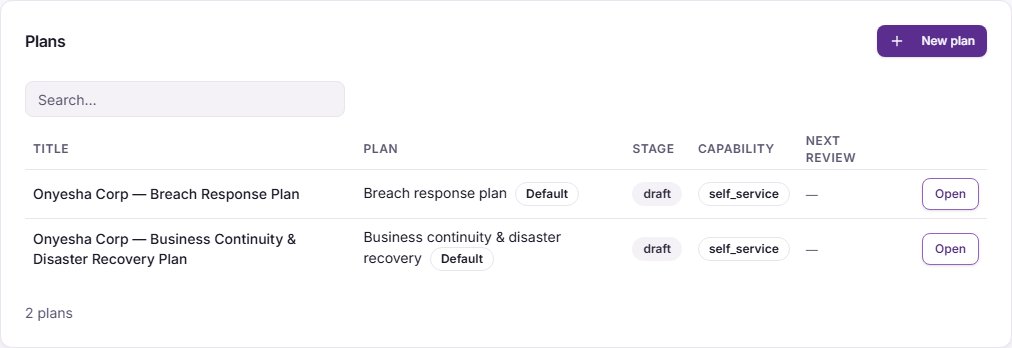
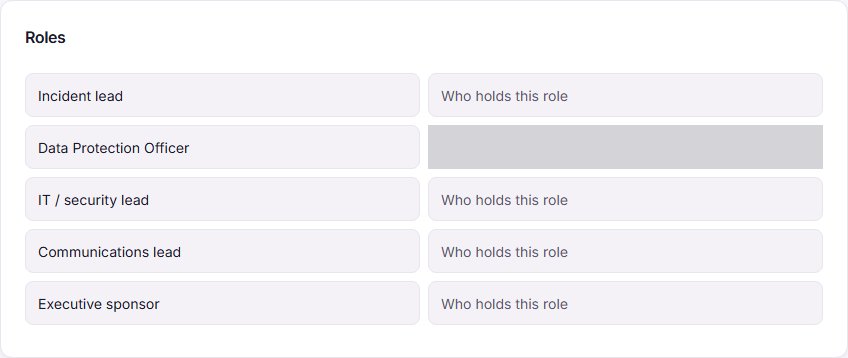
Set up your breach response plan. Select Policies & Plans, then BC/DR Plans. Select Open beside the Breach response plan. Check the Response steps: each has an owner and a due time counted in hours after awareness. In the Roles card, type a name in Who holds this role for each role: Incident lead, Data Protection Officer, IT / security lead, Communications lead and Executive sponsor. Select Save playbook.
-
Issue the plan. When the plan is right, select Issue plan to the Vault. Trident saves the plan as a document in your files. An issued plan stays on record: you can issue a new version later, but an issued version cannot be removed.
-
Build your BC/DR plan. Open the Business continuity & disaster recovery plan. Answer the Guided questionnaire, then select Complete & generate draft to turn your answers into a plan. When it is ready, select Issue plan, and use Record review each time you review it.
Example entries
| Situation | What to record | Likely decision |
|---|---|---|
| A phishing email reached the finance mailbox; nobody clicked the link | What happened, when it was detected, the mailbox as the affected system | No personal data was compromised; resolve with the reason |
| Fee statements were emailed to the wrong parents | What happened, when detected, the email system and the fee records as data assets | Personal data was compromised; confirm the breach |
| A staff laptop with an encrypted disk was stolen | What happened, when detected, the laptop as the data asset, and that the disk was encrypted | Decide with your DPO, using the facts about encryption and what was on it |
| The office server failed and files were restored from backup | What happened, when detected, the server, and that nothing left the organisation | Usually not a breach if no personal data was lost or exposed; record the reason |
The decisions in this table are examples. Decide each real case on its own facts, with your DPO.
Common mistakes
- Waiting to be sure before reporting. Report the incident first and decide afterwards, once you have the facts. Not being sure yet is normal at the start.
- Recording the wrong awareness time. The time you became aware is when you were reasonably sure personal data was affected, not when something was first noticed. Record it honestly, and correct it with a reason if you learn more.
- Confirming a breach to see what happens. Confirming starts the deadlines on a real record. There is no practice mode.
- Deleting a real incident. Keep every real incident on the register, including one you resolved as not a breach. The record and its reason are your evidence that you looked at it.
- Leaving the roles empty. A plan with no names in Who holds this role does not help on the day. Fill them in now.
- Never issuing the plans. A draft plan is not on record. Issue both plans, and review them when people or systems change.
Related modules
How it links with other modules
- Data Assets. You choose the affected systems from your Data Assets register when you report an incident, and the data categories, people and vendors recorded there are reused when you assess a breach. An incident that names an asset is listed on that asset's page. See the Data Assets guide.
- Relationships Register. An incident that names a vendor is listed on that vendor's page, under Linked incidents. See the Relationships Register guide.
- Tasks. The steps of your breach response plan become tasks on every confirmed breach, with due times counted from awareness.
- Files. Issued plans are saved as documents in your files.
- RoPA. Your RoPA shows which activities use the affected data assets, which helps you work out whose data was involved. See the RoPA guide.
Last checked against Trident on 2026-10-20.