
What it is
A data asset is a place where personal data is kept. It can be a cloud service such as Google Drive or your accounting software, your own server, the laptops and phones staff use, a USB drive, or a filing cabinet of paper records. The Data Assets register is the list of those places, each with an owner.
Your RoPA says what you do with personal data and why. The Data Assets register says where that data actually sits. Linking the two shows, for each activity, which systems hold its data.
In Trident the register is Data Assets in the Compliance Hub. How this works, beside the heading, opens a short summary. Each asset has a profile of six steps, and the list shows how far each profile has got in its Profile column.
When to use it
- When you start on Trident. List the places your personal data is kept, as a companion to your list of activities.
- When you take on a new system. A new app, a new shared drive or a new device type. Add it before staff start putting personal data in it.
- When a system moves or changes. A new hosting country, new security settings, or a different owner. Update its profile.
- When you clear something out. Record why it is still held, or that it is due to be deleted, under Why is this held? on the Retention step.
What to gather first
Walk through where your organisation keeps information about people, and write one line per place. These questions help:
- Which online services do staff log in to for work? Email, shared drives, accounting, payroll, booking or school management systems.
- Is there a server in the office, or a computer that holds shared files?
- Do staff keep personal data on their own laptops or phones, for example in WhatsApp?
- Are there USB drives or external disks with backups or files on them?
- Where is the paper? Staff files, signed forms, the visitors' book, receipt books.
For each place you profile, it helps to know:
- Who looks after it day to day, and who answers for it.
- Who provides it (for a cloud service) and in which country it is hosted. See cross-border transfer.
- What kind of personal data it holds, and whether any of it is sensitive data or children's data.
- How access is controlled: passwords, a locked cabinet, who has keys.
- How long the data is kept there and how it is deleted or destroyed. See retention.
Steps
-
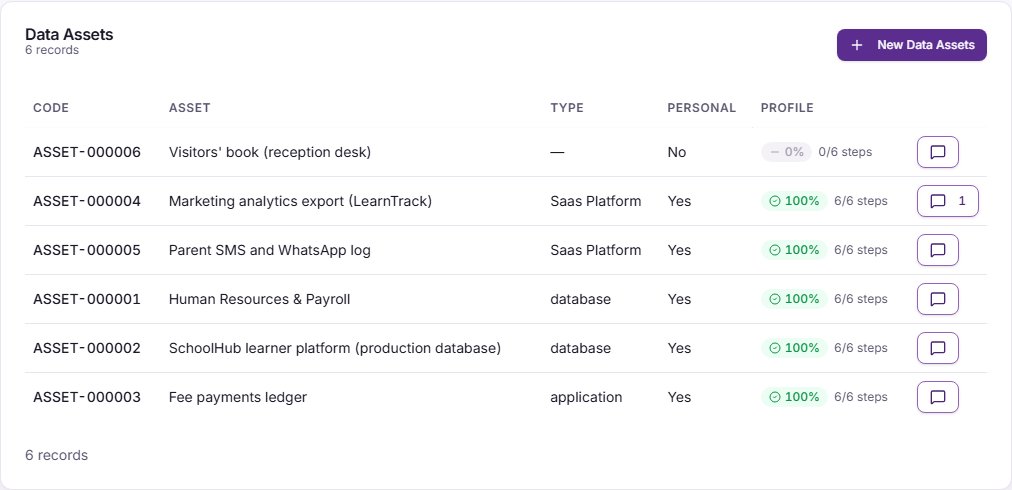
Open the register. Select Compliance Hub in the left menu, then Data Assets. The list shows each asset with its code, name, type, whether it holds personal data and its Profile progress.
-
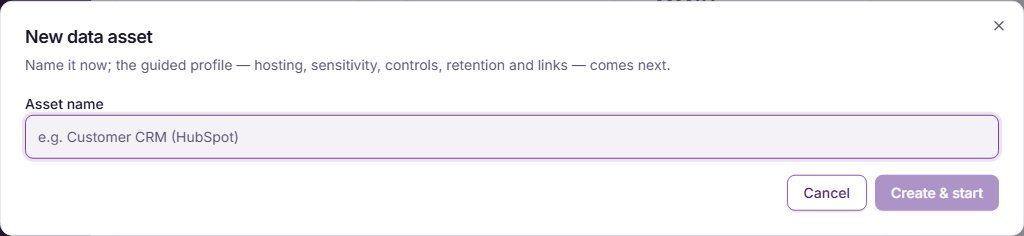
Add an asset by name. Select New Data Assets. A window called New data asset opens with one field, Asset name. Name the place plainly, for example "Payroll system (Sage)" or "Staff files cabinet, HR office". Select Create & start. Trident creates the asset and opens it. There is no bulk add: add each asset this way.
-
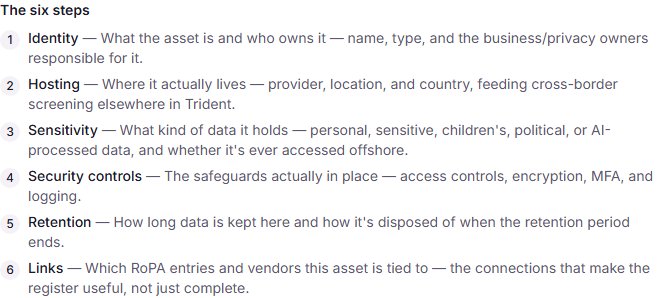
Start the profile. A new asset opens on a Before you start screen that lists the six steps. Select Start to begin. Only the name is required; you can stop after any step and come back later.
-
Work through the six steps. Each step has Save & continue.
- Identity: the Asset name, the Asset type, and who is responsible: a Business owner, a Privacy owner and a Steward.
- Where it lives (the Before you start screen calls this step Hosting): answer What kind of place is it kept in? with Cloud service or SaaS, Our own server (on-premises), Laptops, phones and other devices, USB drives, external disks, tapes or Paper records. Trident then asks for the provider or location, and the Country.
- Sensitivity: choose a Classification, and tick what the asset holds, such as Contains personal data, Contains sensitive / special-category data and Contains children's data. Tick Accessed from offshore if people outside Zimbabwe can reach it.
- Security controls: list the Access controls, and answer each security question with Yes, No or Not recorded. Leave Not recorded when you do not know; Trident does not read it as No. A question that does not apply to that kind of place, such as encryption for paper records, is shown as not applying and has no answer to give.
- Retention: the Retention period, the Deletion method, and Why is this held? (in active use, a legal hold, an archive or due for deletion).
- Links: see the next step.
-
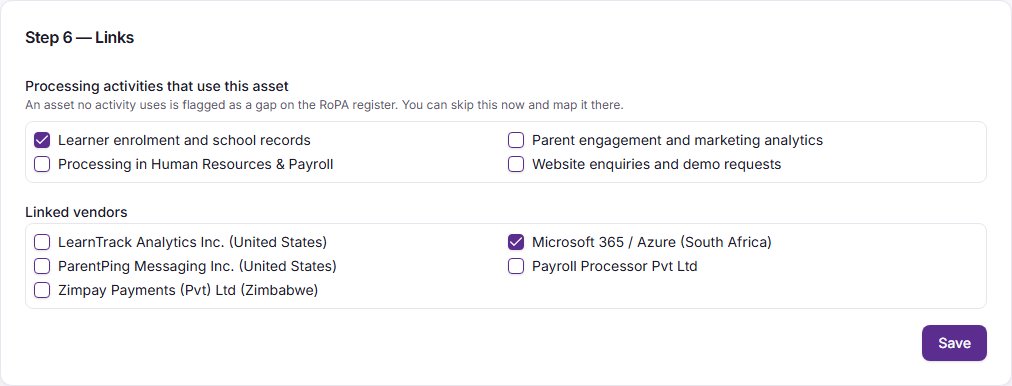
Link the asset to your activities. On the Links step, tick the activities under Processing activities that use this asset, and the vendors under Linked vendors. Select Save & finish (on an asset whose profile is already complete the button reads Save). An asset that no activity uses shows on the RoPA page in the Not yet on your RoPA card.
-
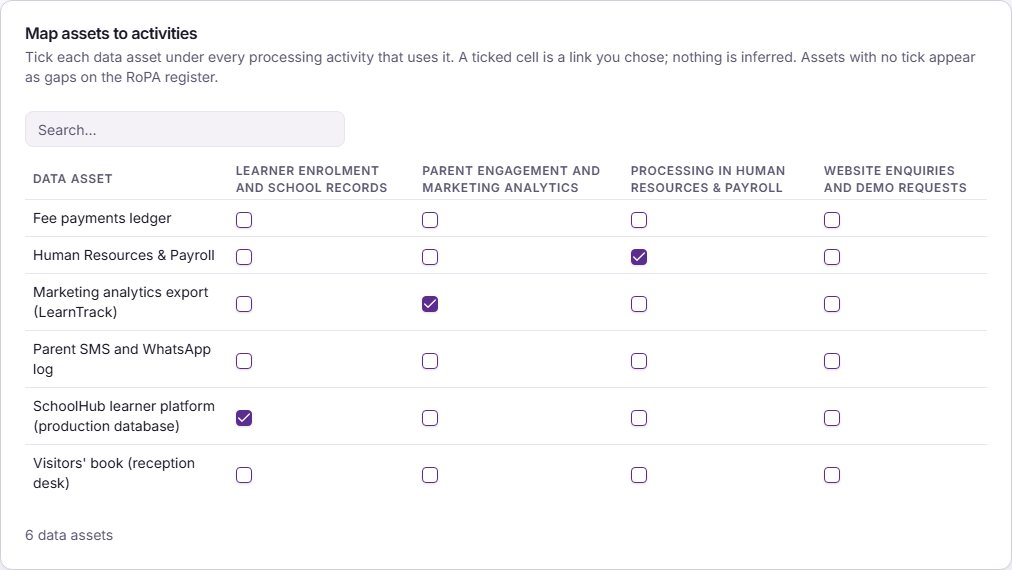
Or link many at once. On the RoPA page, the Not yet on your RoPA card has a link, Map assets to activities in bulk. It opens a grid with your data assets down the side and one column per activity. Each tick saves at once. The grid lists data assets only; vendors are linked one activity at a time on the activity's Parties tab. You can also link assets from an activity: Edit, then Risk & links, then Linked data assets.
Example entries
| Asset name | Where it lives | Sensitivity | Retention period and deletion method | Used by |
|---|---|---|---|---|
| Payroll system (Sage) | Cloud service or SaaS, hosted abroad | Personal data; ID and bank details | 6 years after the person leaves; deleted in the system | Payroll |
| Staff files cabinet, HR office | Paper records, Harare office | Personal data; medical notes | Until the person leaves plus the period your adviser sets; shredded | Recruitment, Payroll |
| Reception laptop | Laptops, phones and other devices | Personal data | Cleared monthly; wiped before the laptop is reused | Visitors' book |
| Visitors' book (reception desk) | Paper records | Personal data | Each book kept 12 months, then shredded | Visitors' book |
These periods are examples. Ask your accountant, adviser or DPO which period applies to each kind of record.
Common mistakes
- Listing only software. Paper files, laptops, phones and USB drives hold personal data too, and are often the least protected.
- One asset for "the cloud". Name each service separately, because each has its own provider, country and settings.
- Guessing security answers. Answer from what is actually set up today. If you do not know whether a laptop is encrypted, leave it as Not recorded and find out.
- Forgetting the country. Many cloud services store data outside Zimbabwe. Record the Country on Where it lives, so cross-border transfers are picked up.
- Not linking assets to activities. An asset with no activity shows as a gap on the RoPA page. Link it, or ask why it holds personal data.
Related modules
How it links with other modules
- RoPA. Activities and assets link both ways: on the asset's Links step, on the activity's Risk & links tab, or in bulk with Map assets to activities in bulk. Unlinked assets show in the Not yet on your RoPA card, with a button to start an activity from them. The RoPA guide covers the activity side.
- Relationships Register. The organisation that provides a cloud service can be chosen from your Relationships Register on Where it lives, and vendors are linked on the Links step. The Relationships Register guide covers vendors and DPAs.
- Cross-border transfers. An asset hosted or accessed outside Zimbabwe is flagged on the RoPA activities that use it. See cross-border transfer.
- Breach and incidents. An incident that names an asset is listed on that asset's page. See breach or incident.
Last checked against Trident on 2026-10-20.