
What it is
Your RoPA, or Record of Processing Activities, is a list of the things your organisation does with personal data. Each line is one activity with a short name: Payroll, Recruitment, Customer orders, Visitors' book. Each activity then gets the detail: what it is for, whose data it uses, what data, why you may use it and how long you keep it.
It is the record that shows you know what personal data you hold and why. A client's procurement team, an auditor or POTRAZ may ask to see it, and in Trident your other registers link back to it.
In Trident the RoPA is a register in the Compliance Hub. Each activity is one record with its own page. A new activity is a draft. Once someone has checked it and selected Approve, it becomes active. If it changes after that, it goes under review until it is approved again. The register's Status column shows which of these each activity is.
When to use it
- When you start on Trident. List your activities by name first. Ten minutes and eight to twelve names is a good start, and three is enough to move on.
- When you fill in the detail. Complete one activity at a time, starting with the one you know best, usually payroll or customer orders.
- When something changes. A new system, a new vendor, data now stored in a cloud service abroad, or a new reason for using the data. Update the activity, or use Report a change, so the record matches what you do.
- When you review it. Open each approved activity. If nothing has changed, select Confirm no change so the review is on record.
- When someone asks. Use Export the register on the RoPA page to give a client or the regulator a copy.
What to gather first
For the list of names, answer these questions on paper or on your phone, one short line per answer. Name each line by what you do, not by the software you use: "Payroll", not the name of your payroll package.
- Who works for you, and what do you keep about them? Payslips, contracts, ID copies, leave forms, job applications.
- Who buys from you, and what do you write down when they do? Names, phone numbers, invoices, delivery addresses, complaints.
- How do you reach people to sell or inform? A newsletter list, a WhatsApp broadcast, event photos.
- Who comes onto your premises, and how do you know? The visitors' book, CCTV, access cards.
- What is particular to your line of work? A clinic keeps patient files; a school keeps pupil and parent records.
For each activity you complete, have one answer for each of these. The words in brackets are where the answer goes in Trident.
- What you use the data for, in one sentence (Purpose).
- Whose data it is: staff, applicants, customers, visitors, children (Categories of data subject).
- What you hold about them: names, ID numbers, bank details, photos (Categories of personal data). Health or biometric data goes under Sensitive categories.
- Why you are allowed to use it (Legal basis). See legal basis. If you are unsure, leave it unset and ask your DPO.
- How long you keep it and how you get rid of it (Retention period and Deletion method). See retention.
- Which vendors and systems handle it. Trident lists the ones in your Relationships Register (once called the Vendor Register) and your Data Assets register.
- Who answers for it: a Business owner and a Privacy owner. Trident offers only people who have a Trident login, so if you are the only user, choose yourself.
Steps
-
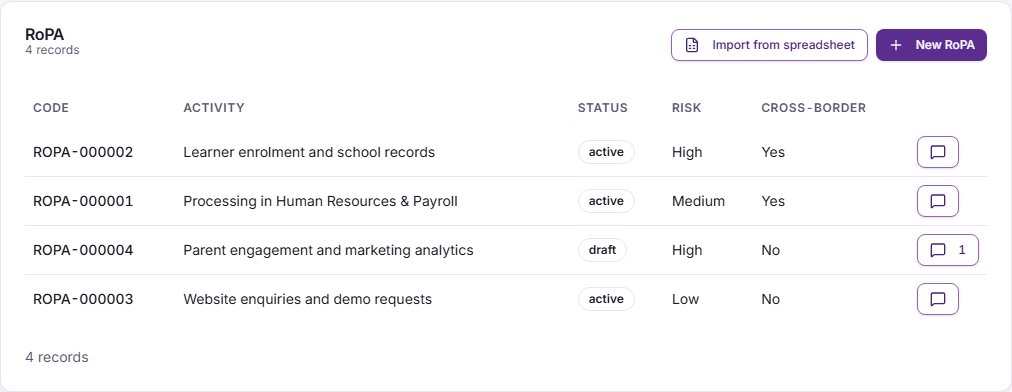
Open the register. Select Compliance Hub in the left menu, then RoPA. The page lists your activities with their status. How this works, beside the heading, opens a short summary called About the RoPA.
-
Add an activity by name. Select New RoPA. A window called New processing activity opens. Type the name in Activity name, the only field you must fill in, and select Create activity. Trident saves it as a draft and opens it. Go back to RoPA and repeat for each name on your list.
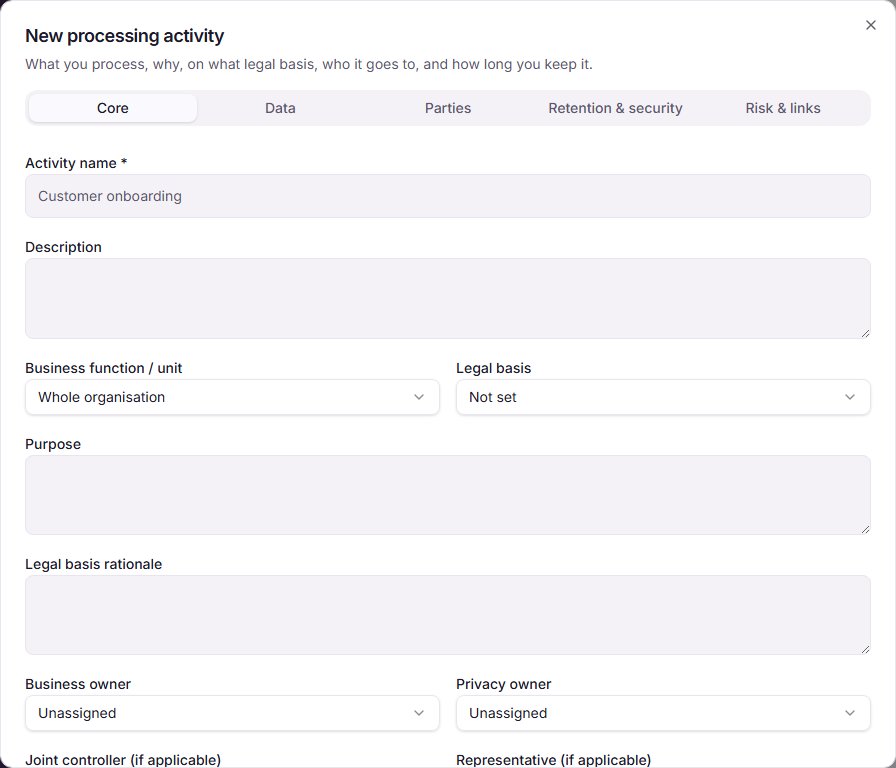
If you already keep a register in a spreadsheet, select Import from spreadsheet instead. It reads .xlsx, .xls and .csv files and adds each row as a draft, up to 200 rows at a time.
-
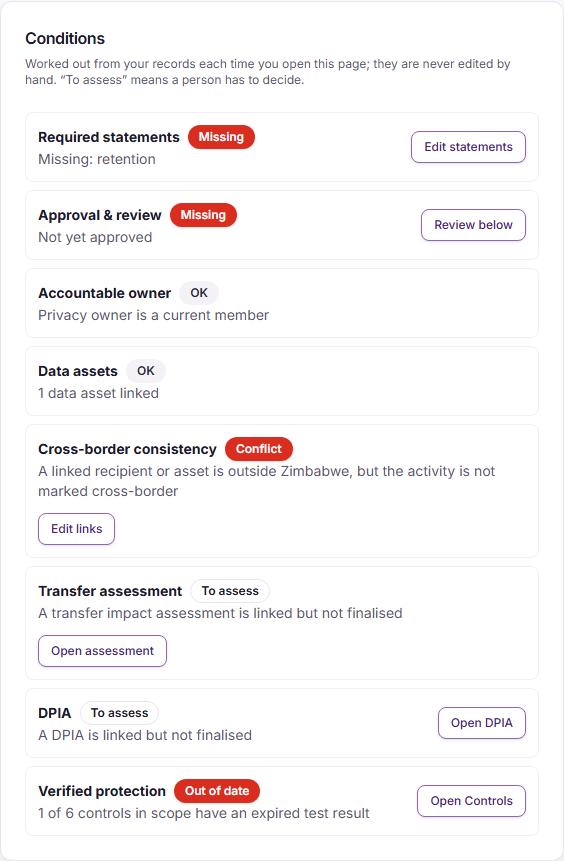
Open an activity and read its Conditions. Select an activity's name. Its Overview has a Conditions card that Trident works out from your records each time you open the page. Missing marks something the activity still needs. Conflict means two of your records disagree, for example a vendor based outside Zimbabwe on an activity that is not marked as cross-border. To assess means a person has to decide, for example whether a DPIA is needed. Each marker has a button beside it that takes you to the fix. Tasks that come from these conditions are listed under Tasks for this activity. The page also has Statements (what you have recorded), Processing context (the systems and vendors linked to it) and Review history.
-
Fill in the Core tab. Select Edit. The form has five tabs: Core, Data, Parties, Retention & security and Risk & links. On Core, fill in Purpose, choose the Legal basis and add a line in Legal basis rationale saying why it applies. Choose a Business owner and a Privacy owner.
-
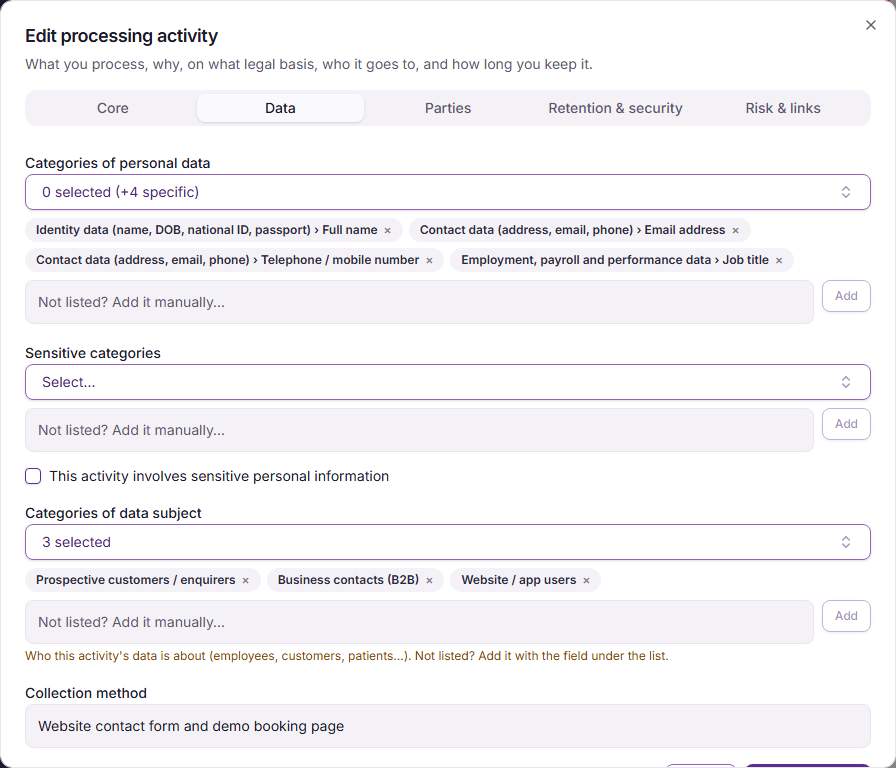
Fill in the Data tab. Choose the Categories of personal data, any Sensitive categories, and the Categories of data subject. If something is not on a list, add it with the field under that list. Tick This activity involves sensitive personal information if it does.
-
Add who else handles the data. On Parties, select Add processor or recipient, choose the vendor, set its Role in this activity and select Add party. Parties can only be added to an activity that has been saved.
-
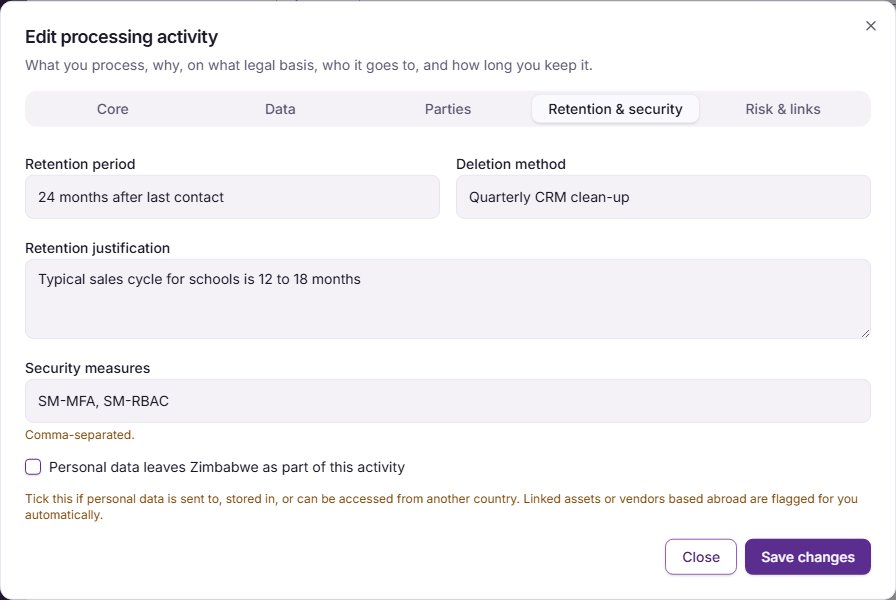
Fill in Retention & security. Type the Retention period in your own words, for example "6 years after the person leaves", and the Deletion method, for example "Shredded, and deleted from the payroll system". If the data is sent to, stored in or can be reached from another country, tick Personal data leaves Zimbabwe as part of this activity. That includes cloud services hosted abroad. When you save, Trident starts a draft transfer impact assessment and adds a task to complete it.
-
Link systems and decide on a DPIA. On Risk & links, choose the systems under Linked data assets. Where no DPIA is linked, either tick Start a DPIA for this activity or write a short reason under Or record why a DPIA is not needed. Then select Save changes.
-
Approve the activity. When Purpose, Legal basis, Categories of data subject, Categories of personal data, Retention period and Privacy owner are all filled in, select Approve. Trident refuses the approval and names what is missing if one of them is empty. The activity becomes active, and the register counts it under Approved and current.
-
Keep it current. If you edit an approved activity, it goes under review until someone selects Approve changes. If something has changed in practice, select Report a change and say what changed. When you review an activity and nothing has changed, select Confirm no change. Each of these is kept in Review history.
Example entries
A first list for a small company might look like this:
| Activity name | What it covers |
|---|---|
| Payroll | Paying staff and making statutory deductions |
| Recruitment | Job adverts, CVs, interview notes |
| Customer orders | Taking orders, invoicing and delivery |
| Visitors' book | Recording who comes onto the premises |
| CCTV | Cameras at the gate and in the shop |
| Newsletter | Sending updates to people who signed up |
One completed activity, Payroll, might read:
| Field | Example |
|---|---|
| Activity name | Payroll |
| Purpose | To pay staff salaries and make tax, pension and medical aid deductions |
| Categories of data subject | Employees |
| Categories of personal data | Names, national ID numbers, bank details, salary and deductions |
| Legal basis | The employment contract (choose the matching basis from the list) |
| Legal basis rationale | We cannot pay staff without these details, and the contract requires us to pay them |
| Parties | The payroll software provider (processor), the bank (recipient) |
| Retention period | 6 years after the person leaves |
| Deletion method | Paper payslips shredded; records deleted from the payroll system |
| Business owner | The finance manager |
| Privacy owner | The DPO |
The retention period here is an example. Ask your accountant or DPO which period applies to your records.
Common mistakes
- One activity for everything. "HR" or "All customer data" is too broad to fill in. Split it into the separate things you do: Payroll, Recruitment, Leave records.
- Naming the software. An activity is what you do. The software you use for it is a data asset, linked on the Risk & links tab.
- Waiting until every detail is known. Save the name first. A draft with gaps is normal, and the Conditions card shows what is left.
- Reading Missing as a failure. Missing is a to-do marker for something not yet recorded.
- Picking a legal basis to fill the box. If you are not sure which basis applies, leave it unset and ask your DPO. The same basis for every activity is a sign something needs checking.
- Forgetting cloud services. Google Drive, Microsoft 365, Dropbox and many payroll and accounting tools store data outside Zimbabwe. Tick the box on Retention & security for those activities.
- Leaving it alone after approval. When a vendor, system or purpose changes, update the activity so it goes back through approval.
Related modules
- Data Assets
- Relationships Register
- DPP and Posture
How it links with other modules
- Data Assets. Systems you link under Linked data assets come from the Data Assets register. A card on the RoPA page, Not yet on your RoPA, lists data assets and vendors that no activity uses yet, each with a Create activity button. See Not yet on your RoPA.
- Relationships Register. The vendors you add on the Parties tab come from the Relationships Register, where each vendor's data processing agreement is kept.
- Cross-border transfers. Ticking the box for data that leaves Zimbabwe starts a transfer impact assessment, listed under Cross-Border Transfers. See cross-border transfer.
- DPIA. Start a DPIA for this activity creates a draft DPIA under Assessments and a task to complete it.
- Tasks. Gaps in an activity create tasks on the Tasks page in the Work Hub, and they clear when the gap is closed.
- Privacy Posture. Your Privacy Posture score reads your RoPA. Having no RoPA record is a hard gate that holds your band down.
Last checked against Trident on 2026-10-20.