
What it is
The Relationships Register is the list of organisations outside your own that you deal with. Trident used to call it the Vendor Register. Most entries are vendors: companies that handle personal data for you, such as your accountant, your payroll software, your email provider, a courier or the alarm company. The Cyber and Data Protection Act calls them data processors. The register can also hold partners, a parent company, affiliates, regulators and customers, because a vendor is one kind of relationship.
For each vendor the register records who they are, what they do with your data (their Data role), whether the data leaves Zimbabwe, how far you have got in checking them (due diligence), and whether a signed data processing agreement, or DPA, is on file. A DPA is the written agreement in which the vendor commits to protecting your data.
In Trident the register is in the Compliance Hub, under Relationships Register. How this works, beside the heading, opens a short summary of the register.
When to use it
- When you start on Trident. List the vendors and systems that hold personal data for you, so they can be linked to your RoPA activities.
- When you take on a new vendor. Add it and check it before it starts handling data, and ask for a signed DPA.
- When a vendor changes. A new hosting country, a new service or a new owner. Update its page so the record matches.
- When a DPA is due for renewal. Record the renewed agreement under Renew DPA on the vendor's page.
- When you stop using a vendor. Use Lifecycle controls on its page to archive or offboard it. Its documents and history are kept.
What to gather first
Before you open Trident, write down the outside organisations that touch personal data for you, one line each. These questions help:
- Who pays your staff, keeps your books or does your tax? Your payroll provider and accountant.
- Where are your emails, files and calendars? For example Google Workspace or Microsoft 365.
- Which software holds customer or member details? Your accounting package, booking system or mailing list tool.
- Who comes on site or handles data for you? Couriers, security companies, IT support, a cleaning company with access to offices.
- Who sends messages for you? An SMS or WhatsApp service, a newsletter tool.
For each vendor you check in detail, have to hand:
- Its full name, website and a contact email.
- What it does for you, in one line.
- Where it stores or reaches your data: in Zimbabwe, or in another country. See cross-border transfer.
- Any security certificates it holds, such as ISO 27001 or SOC 2, and when you last checked them.
- The signed DPA, as a PDF or Word file, if you have one.
Steps
-
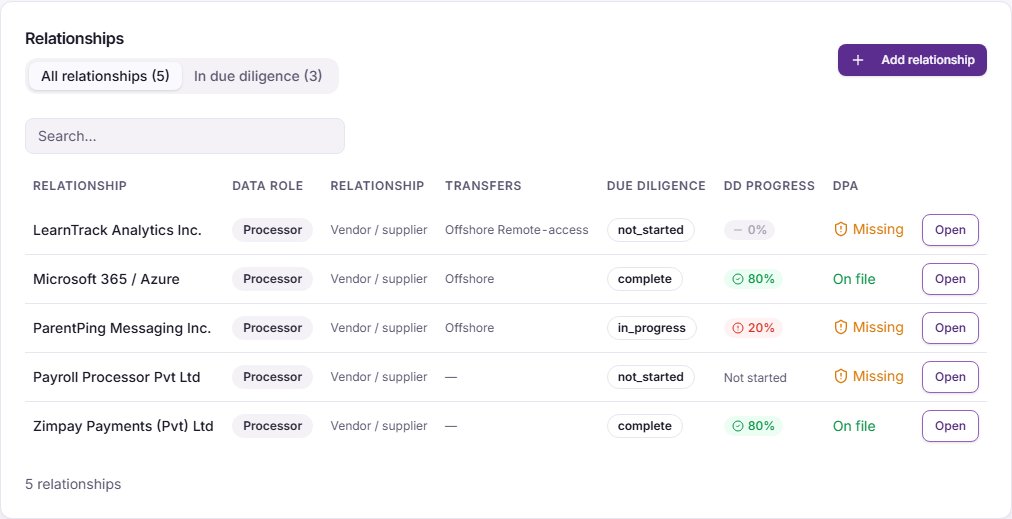
Open the register. Select Compliance Hub in the left menu, then Relationships Register. The list shows each relationship with its data role, due diligence status and progress, and a DPA column. All relationships shows every entry. In due diligence shows the ones whose checks are not finished.
-
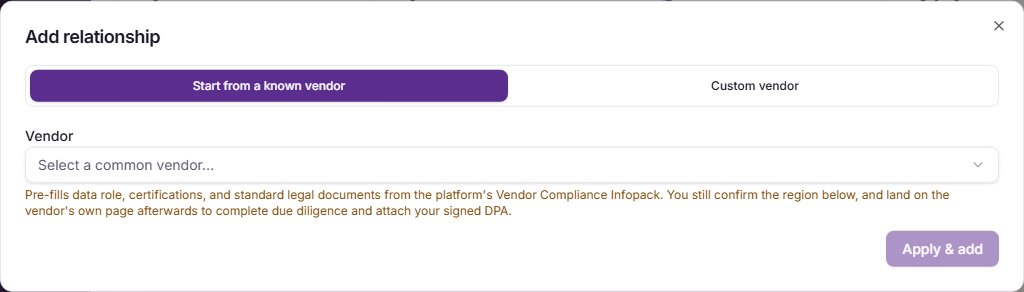
Add a well-known vendor. Select Add relationship. The window opens on Start from a known vendor. Choose the vendor from Select a common vendor. Trident knows nine: Google Workspace, Microsoft 365 / Azure, Amazon Web Services, Supabase, Stripe, Cloudflare, Vercel, QuickBooks and Zoho. If Trident asks where the vendor stores or reaches your data, choose the region. Select Apply & add. Trident fills in the vendor's data role, certificates and standard legal documents, closes the window and adds the vendor to the list.
-
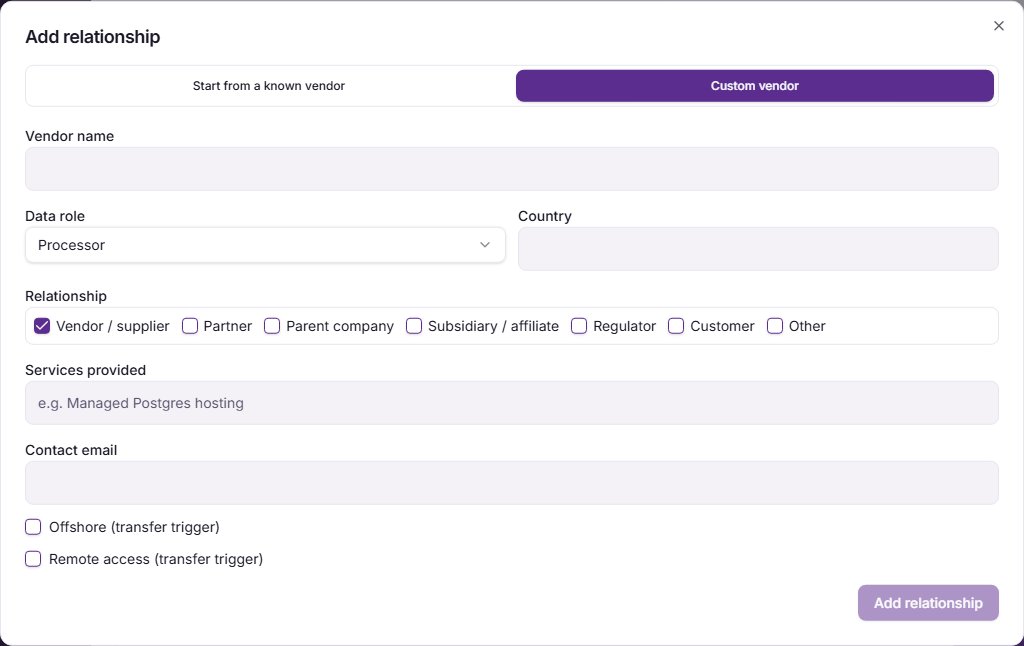
Add any other vendor. In the same window, select Custom vendor. Type the Vendor name. Choose the Data role: Processor for a vendor that handles data on your behalf, which covers most vendors; No personal-data relationship for one that never touches personal data. Fill in Country, Services provided and Contact email if you know them. Tick Offshore (transfer trigger) if the vendor keeps your data outside Zimbabwe, and Remote access (transfer trigger) if its staff can reach your data from another country. Select Add relationship. The window closes and the vendor is added to the list; you stay on the list.
-
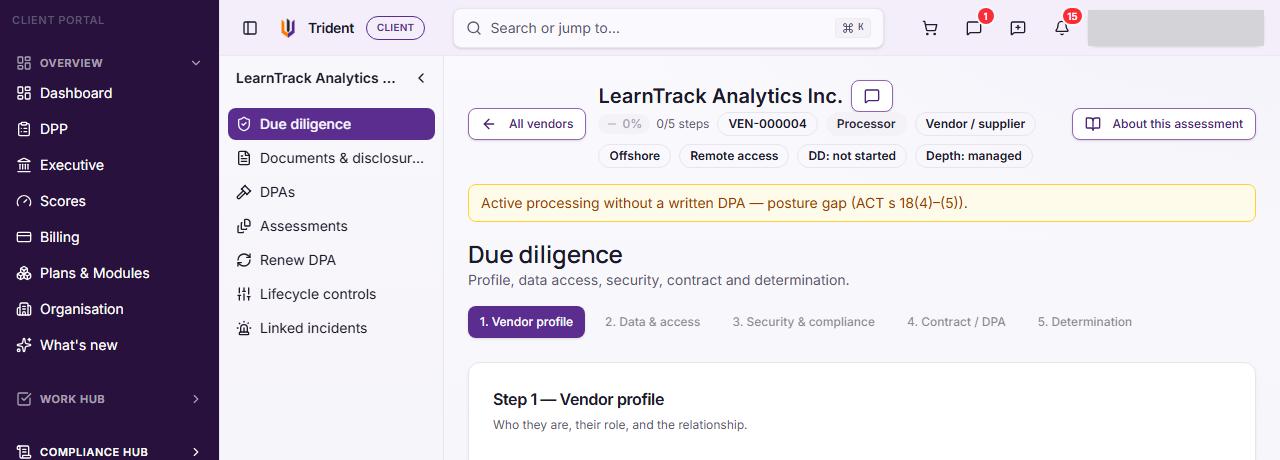
Check the DPA column. A new vendor with the data role Processor, Sub-processor or Joint controller shows Missing in the DPA column until a signed DPA is attached. That is expected: it marks the agreement as still to get. The vendor's own page shows the same gap as a warning at the top.
-
Do the due diligence. Select Open beside a vendor. If its checks have not started, select Start due diligence. There are five steps: Vendor profile, Data & access, Security & compliance, Contract / DPA and Determination. Save keeps what you typed, and Save & continue keeps it and opens the next step. You can leave and come back; every step you have reached stays open to edit.
-
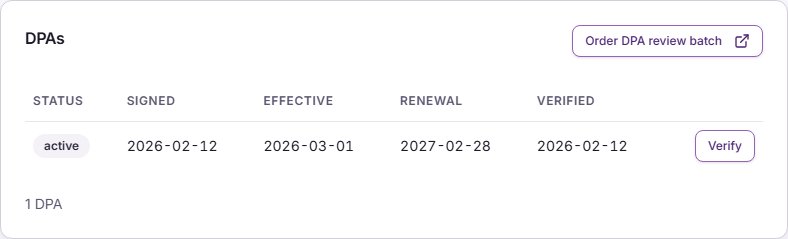
Attach the signed DPA. On Contract / DPA, choose the agreement with Pick from the vault, or select Upload a new document instead if it is not in your documents yet. Fill in the Signed date. Without it Trident keeps the agreement as a draft, and the DPA column still shows Missing. Add the Effective and Renewal dates if you have them. Select Save & continue to attach it and move on to Determination, or Attach DPA (without continuing) to attach it and stay on the step. The DPA column then shows On file, and the agreement is listed under DPAs on the vendor's page.
-
Record the outcome. On Determination, choose the status and write a short note on what you checked and what you decided.
-
Link the vendor to your activities. Vendors are linked one activity at a time, from the RoPA. Open the activity in RoPA, select Edit, go to the Parties tab, select Add processor or recipient, choose the vendor, set its Role in this activity and select Add party. The bulk mapping grid on the RoPA page lists data assets only, so it cannot link vendors. The RoPA guide has the full steps.
Example entries
| Vendor | How to add it | Data role | Transfers | What to get |
|---|---|---|---|---|
| Google Workspace | Start from a known vendor | Processor | Data stored abroad | Google's data processing terms for your account, saved as a PDF |
| A local payroll bureau | Custom vendor | Processor | None if its servers are in Zimbabwe | A signed DPA, or a data protection clause in your contract |
| An SMS messaging service based in South Africa | Custom vendor, Offshore ticked | Processor | Data stored abroad | A signed DPA, and a transfer impact assessment for the activity that uses it |
| A security company that only guards the gate | Custom vendor | No personal-data relationship | None | Nothing, unless it keeps a visitors' book or CCTV for you |
Common mistakes
- Leaving out free tools. A free email account, a shared drive or a messaging app still holds personal data. Add the ones your staff use for work.
- Choosing No personal-data relationship to clear the Missing marker. The data role should say what the vendor really does with your data. If it handles personal data for you, it is a processor and needs a DPA.
- Treating a contract as a DPA. A general service contract often says nothing about personal data. Check that the agreement covers how the vendor protects, keeps and returns your data.
- Forgetting where data is kept. Many cloud tools store data outside Zimbabwe. Tick Offshore (transfer trigger) or choose the region, so the transfer shows up in your records.
- Adding vendors but not linking them. A vendor that no activity uses appears in the RoPA's Not yet on your RoPA card. Link it on the activity's Parties tab, or ask why you have it.
- Deleting a vendor you stopped using. Archive or offboard it under Lifecycle controls instead, so its history and documents stay on record.
Related modules
How it links with other modules
- RoPA. Each activity names the vendors that handle its data on its Parties tab. A vendor that no activity uses shows on the RoPA page in the Not yet on your RoPA card, with a button to start an activity from it.
- Cross-border transfers. A vendor based outside Zimbabwe is flagged on the RoPA activities that use it, and the country you choose for a known vendor is used by the transfer impact assessment. See cross-border transfer.
- Documents. DPAs and other vendor documents are kept in your document vault and shown on the vendor's page under DPAs and Documents & disclosures.
- Breach and incidents. An incident that names a vendor is listed on that vendor's page under Linked incidents. See breach or incident.
- Privacy Posture. A vendor that processes your data without a written DPA counts as a gap in your Privacy Posture.
Last checked against Trident on 2026-10-20.