
What it is
A privacy notice is the page that tells people what you do with their personal data: who you are, what you collect, why, who gets it and how they can reach you. A core data protection policy is the internal document that tells your staff how your organisation handles personal data.
Trident drafts both from the answers you give, then scores the draft against a checklist for Zimbabwe and shows the result as a band. It can also score a policy you already have.
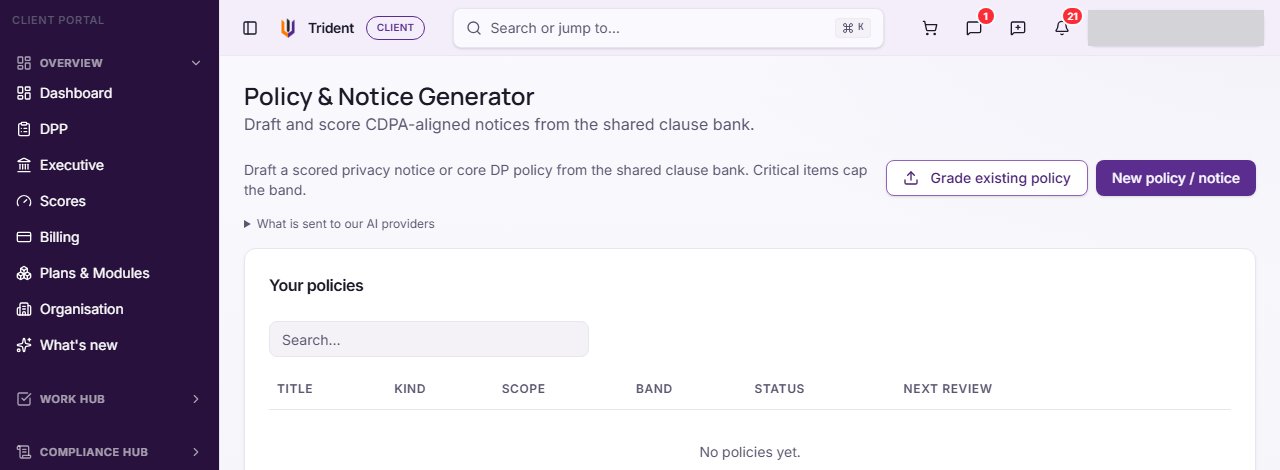
In Trident this is Policies, under Policies & Plans. The page is called Policy & Notice Generator. It lists Your policies, each with its Band, whether it is a Draft or Issued, and its Next review date.
When to use it
- Once your activities are recorded. A notice is built from what you do with personal data, so complete at least one RoPA activity first. The RoPA guide shows how.
- When you need a notice for your website, forms or reception desk. Draft a Privacy notice.
- When you need a written policy for staff. Draft a Core DP policy.
- When you already have a policy. Use Grade existing policy to see how it scores before you write a new one.
- When something changes. A new purpose, a new vendor or data now stored abroad. Draft again so the notice says what you do today.
What to gather first
Have these answers ready before you open the generator. Trident does not read them from your other registers, so it helps to keep your RoPA and Relationships Register open in another tab.
- Your organisation's legal name and physical address, and the controller's name if it is different.
- A DPO email address and a general contact email address. See DPO.
- What you use personal data for, and the reason you are allowed to: one line per purpose, with its legal basis. For example, Payroll with the employment contract as its basis.
- Who else receives the data: your vendors and processors. See vendor.
- Two or three sentences on how you protect it, for example locked cabinets, passwords and who has access.
- Whether any of it leaves Zimbabwe, including to cloud tools hosted abroad, and on what terms. See cross-border transfer.
- Whether you process children's data, and whether you use automated or AI decisions about people, or use their data to train AI.
Steps
-
Open the generator. Select Policies & Plans in the left menu, then Policies. The page shows Grade existing policy and New policy / notice, and below them Your policies.
-
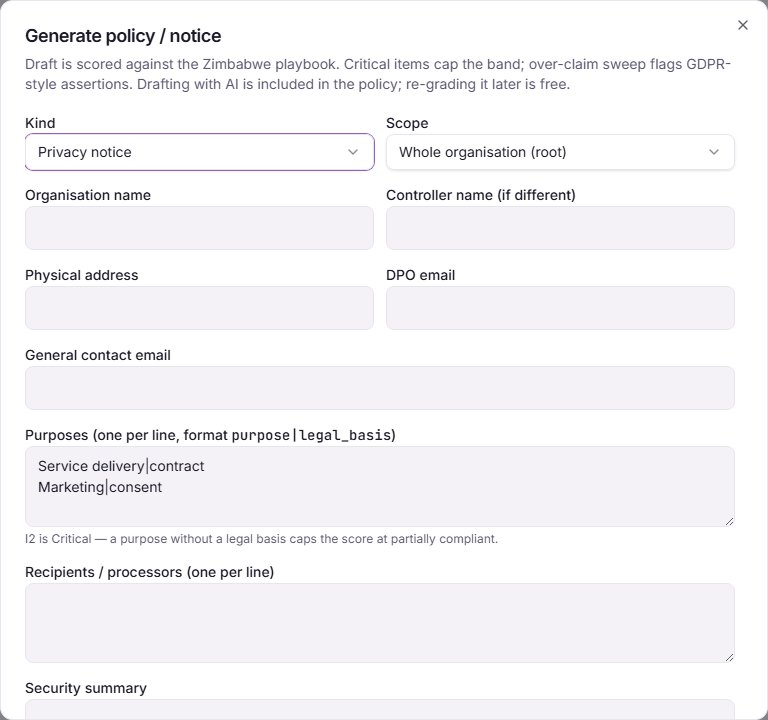
Start a draft. Select New policy / notice. A window called Generate policy / notice opens. Under Kind, choose Privacy notice or Core DP policy. Leave Scope on Whole organisation (root) unless the policy is for one business unit.
-
Fill in the details. Enter the Organisation name, Physical address, DPO email and General contact email. In the purposes box, type one purpose per line in the form shown, purpose then a vertical bar then legal basis, for example
Payroll|contract. The box starts with two example lines; replace them with your own. Add your Recipients / processors (one per line) and a Security summary. Switch on Cross-border transfers if data leaves Zimbabwe, and fill in the transfers box that appears. Set the switches for Processes children's data, AI decision-making disclosed (P1) and AI training use disclosed (P2). -
Generate it. Select Generate draft. You can switch on Draft the text with AI (graded from its wording, with quoted evidence) first; with it off, Trident builds the text from its own clause bank. The result appears in the same window: the band, the Criterion scores, and the Policy text. Open Policy text, read every line for anything untrue or missing, and copy it somewhere safe before you select Close.
-
Read the band. The band, from Unassessed up to the highest, shows how the draft's wording scores against Trident's checklist for Zimbabwe. Criterion scores shows which items scored and which did not. Some items are critical: if one of them is missing, such as a purpose with no legal basis, the band cannot reach the top. The band scores the document's wording only. It does not show whether your organisation complies with the law, and it does not replace legal advice.
-
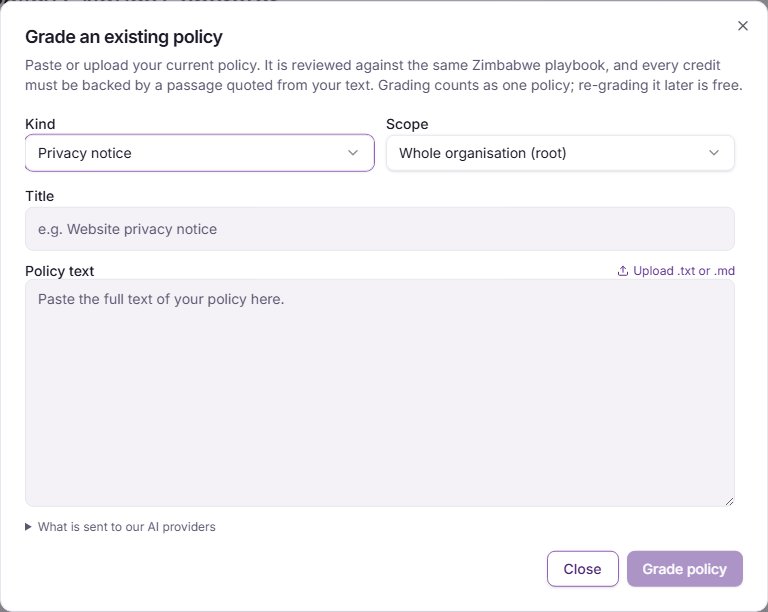
Or grade a policy you already have. Select Grade existing policy. In the window Grade an existing policy, choose the Kind and Scope, give it a Title, and paste the text, or select Upload .txt or .md. Select Grade policy. Every credit it gives is backed by a passage quoted from your text.
-
Issue it. In Your policies, select Issue final on the version you want to use. It is marked Issued and filed in your documents. Trident does not publish a notice on your website: copy the text onto your website, forms or noticeboard yourself. A draft you graded or drafted with AI can be scored again with Re-grade before you issue it.
Example entries
| Field | Example for a small school |
|---|---|
| Kind | Privacy notice |
| Purposes | Enrolment and school records|contract, Fee collection|contract, Newsletter to parents|consent |
| Recipients / processors | Microsoft 365, the payments provider, the SMS messaging service |
| Security summary | Paper files in a locked office; staff accounts with passwords and two-step sign-in; access limited to the bursar and the head |
| Cross-border transfers | On: email and files hosted by Microsoft in South Africa |
How many policies your plan includes. Each Generate draft, and each Grade policy, uses one policy from your plan's allowance. Drafting with AI is included in that policy, and re-grading it later is free. Starter pays for each policy. Essential includes 12 a year and Standard 30 a year, with further policies charged beyond that. Enterprise includes the generator without a yearly number. The pricing page has the current figures.
Common mistakes
- Generating before the facts are ready. Every Generate draft uses a policy from your allowance, and generating again adds a second draft to the list. Gather the answers first, and issue the right version.
- Keeping the example purposes. The purposes box starts with two example lines. Replace them with what you actually do.
- Leaving out the legal basis. A purpose with no legal basis is a critical gap and holds the band down.
- Forgetting cloud services. Email, file storage and many accounting tools keep data outside Zimbabwe. Switch on Cross-border transfers and list them.
- Treating the band as a legal opinion. The band checks the document's wording. Have your DPO or adviser read the notice before you publish it.
- Issuing and forgetting. Trident does not put the notice on your website. Copy it there, and draft again when what you do changes.
Related modules
- RoPA
- Relationships Register
- DPP and Posture
How it links with other modules
- RoPA. Your purposes and legal bases come from your RoPA activities. Copy them across; the generator does not read them for you.
- Relationships Register. The vendors you list as recipients should match your Relationships Register.
- Documents. An issued policy is filed in your documents.
- DPP. Issuing your privacy notice and core policy are jobs on your Data Protection Plan.
- Privacy Posture. Your Privacy Posture counts your policies.
Last checked against Trident on 2026-10-22.