
What it is
Your Data Protection Plan, or DPP, is the list of data protection jobs Trident keeps for you, grouped by when they are due. It starts with the basics, such as confirming your licensing position and opening your core records, and goes on to the jobs that repeat through the year.
Your scores are worked out from what you have recorded in Trident. The main one is your Privacy Posture: a reading of how well your privacy programme is running day to day, taken from your records. A score counts the evidence Trident holds. It is not a percentage, and it is not a legal opinion on whether your organisation complies.
In Trident, both are under Overview in the left menu: DPP opens your plan, and your scores open from Scores or Posture. An organisation sees one of two score pages, depending on its scoring version:
- Scores shows five scores, each out of 1,000: Privacy Posture, Trident Score, the compliance score, Assurance and Data Utility. Each has its own bands. For Privacy Posture they are not yet operating, establishing, operating and embedded.
- Posture opens the older Privacy Posture page, with one score out of 100 and the bands at risk, developing, adequate and strong.
When to use it
- When you start on Trident. The plan's first phase tells you what to do first.
- Each week. Open the plan to see what is due and what is overdue, then go to the task.
- Before a meeting with management, a client or the regulator. Download the plan as a PDF, and look at your scores to see which gaps are left.
- After a big change. A new licence, a DPO appointment or an incident changes both the plan and the scores.
What to gather first
You need nothing new to read the plan or the scores: both come from what is already in Trident. To move them, you need the records and documents the jobs ask for. The usual first ones are:
- Your licence position: whether you hold a Data Controller licence, and its number and date if you do. See Data Controller licence.
- Who your DPO is. See DPO.
- The names of the things you do with personal data, for your RoPA. See the RoPA guide.
Steps
-
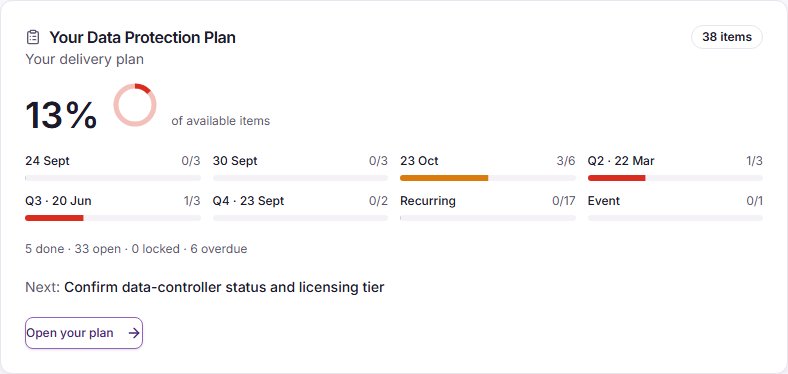
Open your plan. Select DPP under Overview. The page is called Data Protection Plan. The Your Data Protection Plan card shows how much of the plan is done, as a share of available items, the phases with their counts, how many jobs are done, open, locked and overdue, and the next job. Select Open your plan to see every job.
-
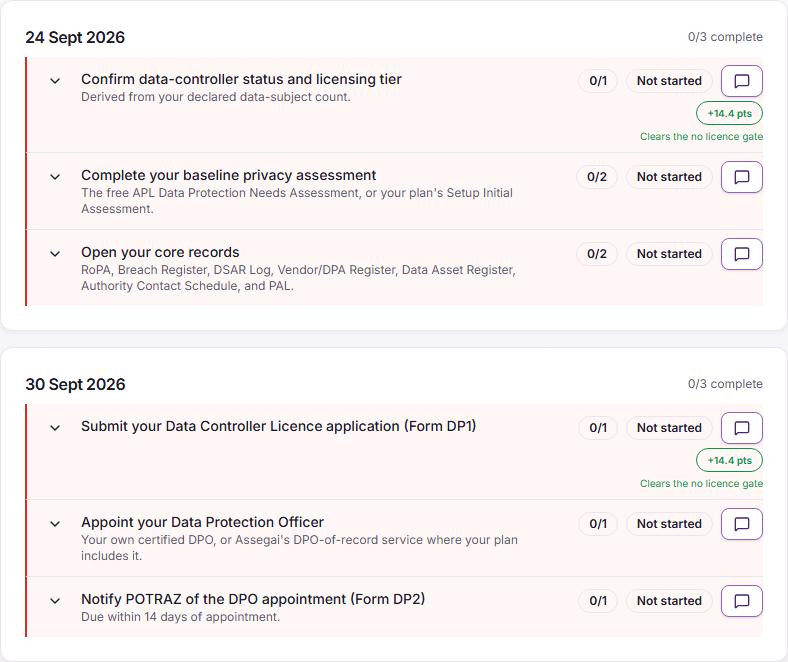
Read the plan. Plan lists the jobs phase by phase, each phase with its date and how many of its jobs are complete. Each job shows a count such as 0/1 or 1/2 (its parts done), and a status: Not started, In progress, Complete or Not applicable. A job past its date is marked in red. A job your plan does not include shows Locked with Upgrade to unlock and View upgrade options.
-
Do a job. Open the arrow beside a job to see its parts. The task part has Go to task, which takes you to the page where the work is done. A few jobs have their own button instead, such as Record registration for your licence number once you hold the licence. Some jobs also have an assessment part, which opens a short Privacy Lab Africa assessment.
-
Check the backfill review. Backfill review lists jobs that may already be done by records you have, so you can check them before doing the work again.
-
Keep a copy. Select Download PDF for the plan as it stands today.
-
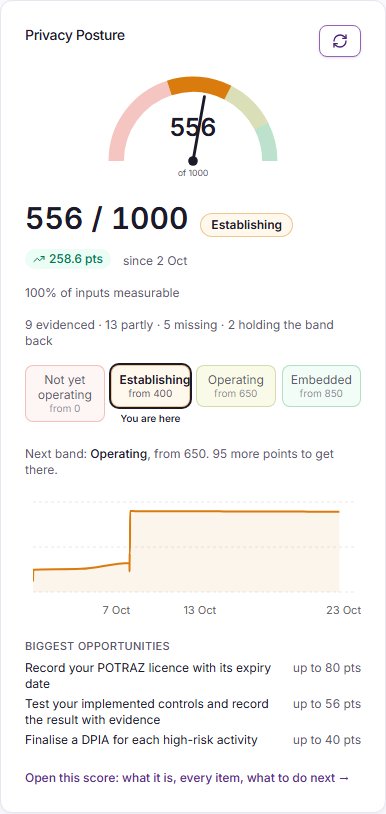
Open your scores. Select Scores under Overview. The overview shows a card for each score with the number out of 1,000, its band, how far it has moved, a band ladder with You are here, the Next band and the points needed to reach it, and the biggest opportunities to add points.
-
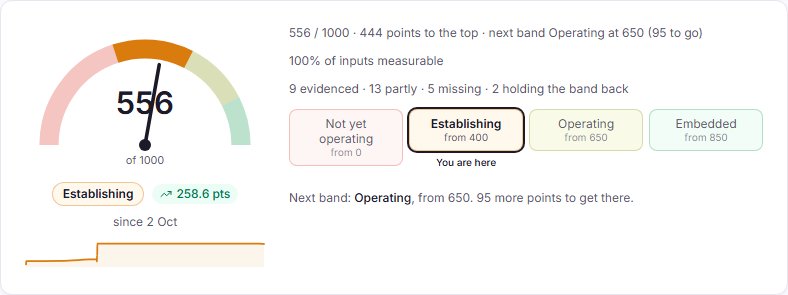
Open one score. Select a score's name, such as Privacy Posture, in the menu on the left of the Scores page. Its page shows the number, how many items are evidenced, partly evidenced or missing, how many are holding the band back, and the band ladder. Below that are what the score is and how it is worked out, what to do next, and every item behind the number.
-
Find what to do. What to do next groups the jobs that would move each score. How scores work explains points, bands and gates. About your organisation shows the answers your scores depend on, such as your size and what you process.
If your organisation sees Posture instead of Scores, the Privacy Posture page shows your score out of 100 with its band, and sections for Score & trend, Domain breakdown, What's driving your score, Hard gates and DPP progress.
Example entries
The five scores on the Scores page, as each one describes itself:
| Score | What it reads |
|---|---|
| Privacy Posture | How well your privacy programme is running day to day, from the records you keep in Trident |
| Trident Score | How much you use Trident to get privacy work done, and how steadily |
| Compliance score | How much of the data protection framework you can evidence today, requirement by requirement |
| Assurance | How well the privacy risks you have recorded are controlled, and whether your risk register can be trusted |
| Data Utility | Whether the personal data you hold has a reason to be held |
The bands of Privacy Posture on the Scores page, with the points where each starts:
| Band | Starts at |
|---|---|
| Not yet operating | 0 |
| Establishing | 400 |
| Operating | 650 |
| Embedded | 850 |
A few items are hard gates: until one is met, the band stays below where the number alone would put it. The number itself does not change, and the score's page names the gate.
Common mistakes
- Reading a score as a percentage or a pass mark. It is a count of evidenced points out of 1,000 (or 100 on the older page). The band is a label for where the number sits.
- Reading a score as a legal opinion. A score shows what is recorded in Trident. Work done outside Trident earns nothing until it is recorded, and a complete record does not prove the work was done well.
- Recording without evidence. Something you only declared, with nothing behind it, counts for half until it is backed by a record or a document.
- Leaving overdue jobs. A lapsed review date, training record or deadline takes points away, and an overdue job stays red on the plan.
- Doing a job twice. Check Backfill review first: your existing records may already cover it.
Related modules
How it links with other modules
- Every register. The plan's jobs send you to the RoPA, the Relationships Register, Data Assets, the breach register, training and policies, and the scores read from all of them. See the RoPA guide and the Policies guide.
- Licensing. Recording your licence registration is a plan job and one of the gates on Privacy Posture.
- Tasks. Jobs with a due date become tasks on the Tasks page in the Work Hub.
- Privacy Lab Africa. Some jobs include a short assessment on Privacy Lab Africa. Its findings appear under Privacy Lab findings on the Scores page.
Last checked against Trident on 2026-10-23.