
Module guide for client admins and client users
What it is
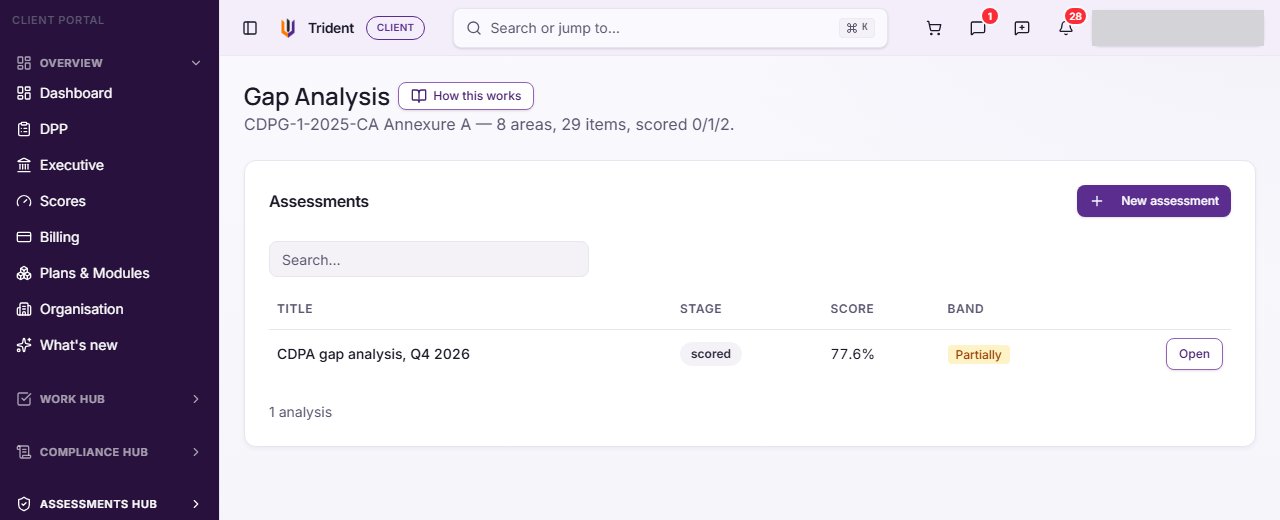
A gap analysis checks your data protection programme as a whole against a fixed checklist and shows what is missing. Trident uses the CDPG-1-2025-CA Annexure A checklist: 8 areas, 29 items, as the page heading says.
You answer each item, and Trident turns your answers into one score with a band, and a list of gaps. Each gap can become a task, so finding and fixing stay in one place. It is a check of the whole programme, not of one activity: a DPIA looks at one processing activity, and the Risk Register tracks one risk at a time.
In Trident this is Gap Analysis, in the Assessments Hub. Each analysis has five sections: Scope, Checklist, Results, Evidence and Review & sign-off. Select How this works on the Gap Analysis page to open About Gap Analysis, which explains the score in Trident's own words.
When to use it
- When you start with Trident. A first gap analysis shows where you stand and what to do first.
- For each new period, or after a big change. A new period means a new analysis, so you can compare one with the last.
- Before a review by a client, an auditor or POTRAZ. It gives you a dated record of where you stood and what you were fixing.
- When your records are in place. Several items are checked against what you already keep in Trident, such as vendor agreements, training records and incident records. The more you have recorded, the less you answer by hand.
The step-by-step guide walks through one analysis from start to finish.
What to gather first
- Your other registers, up to date: the RoPA, the Relationships Register, Data Assets, the Training Register and the Breach & Incident Register.
- Your policies and any signed agreements, uploaded to your files, so you can link them as evidence.
- Someone who knows how the organisation works day to day, and someone who will review the answers and sign them off. They can be the same person in a small organisation.
- An honest view. The score is only as good as the answers. A low score with a plan to fix it is more useful than a high one nobody can back up.
Steps
The step-by-step guide has every button. In short:
- Start an analysis. Open Gap Analysis in the Assessments Hub and select New assessment. The Controls Register also has Start a gap analysis.
- Answer the checklist. For each item choose Evidenced, Partial, Not evidenced or Unknown, or mark it N/A with a reason. Run signals suggests answers for the items Trident can check from your records; you confirm or change each one.
- Score it. Select Compute score. Results shows the Overall score, the Compliance band and the score for each area.
- Turn gaps into tasks. Select Process findings. Each gap becomes a finding with a task to fix it.
- Add evidence. In Evidence, link the document that proves each item.
- Review and sign off. In Review & sign-off, the reviewer records a sign-off statement. You can then prepare a Self-Assessment Report.
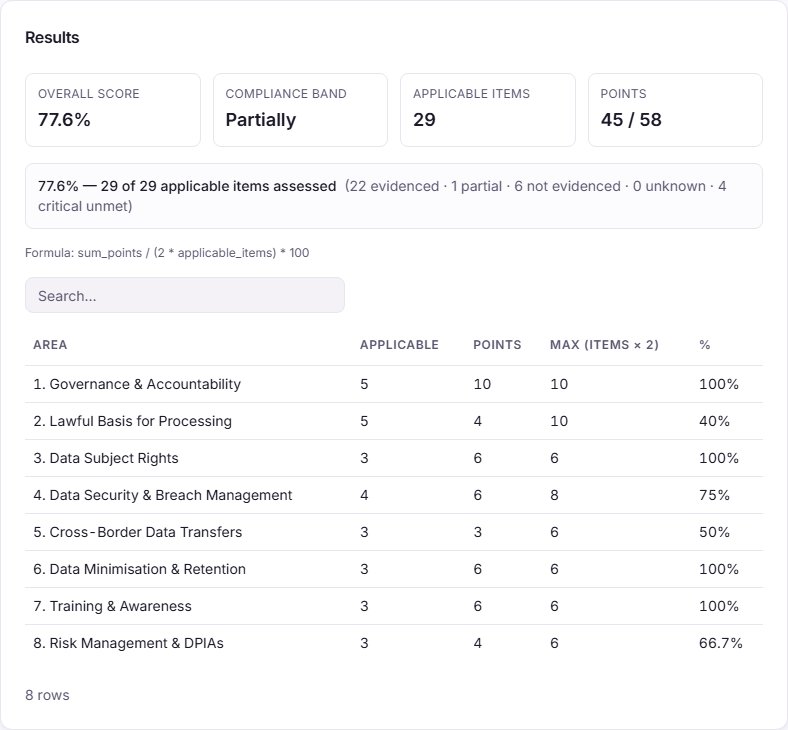
How the score and the band are worked out. Each applicable item scores points from its answer, and the score is the points earned over the points possible, as a percentage. Items you mark not applicable are left out; items answered Unknown stay in and earn nothing. Trident puts the score in a band. These are the bands as the About Gap Analysis sheet and the Gap Analysis list state them:
| Band | Score |
|---|---|
| Fully compliant | 90% or more |
| Substantially | 70% to 89% |
| Partially | 50% to 69% |
| Non-compliant | below 50% |
Some items are marked Critical. In the sheet's words, "any critical item left unevidenced caps the band at "partially" no matter how high the rest of the score is". The sheet also says: "This score reflects the answers given; it is not a certification and does not replace a regulator's own assessment." The band is a reading of what you recorded, not a legal opinion on whether your organisation complies.
Example entries
| Item type | Example answer |
|---|---|
| An item you can prove | Evidenced, with the signed processor agreement linked in Evidence |
| An item half in place | Partial, with a note: "Policy drafted, not yet issued to staff" |
| An item you do not know yet | Unknown, with a note of who to ask. It earns nothing until you answer it |
| An item that does not fit how you work | N/A, with the reason, for example "We do not transfer personal data outside Zimbabwe" |
Common mistakes
- Marking items not applicable to lift the score. An item is not applicable only when it does not fit how you work. The reason is recorded with the answer.
- Leaving items on Unknown. They earn nothing and hold the score down. Find out and answer them.
- Accepting every signal without looking. A signal only suggests an answer. Your own choice is what counts.
- Scoring and stopping. The value is in Process findings and the tasks it creates. Work the tasks, then score again.
- Reading the band as a certificate. The product says the score "is not a certification". Treat it as a measure of your own records.
- Expecting Trident to send the report. Trident never sends anything to POTRAZ. If you send the Self-Assessment Report, you send it yourself.
Related modules
How it links with other modules
- Relationships Register, Training Register, Breach & Incident Register. Run signals reads them to suggest answers, and the Scope section can add a vendor you name to the Relationships Register as a suggestion.
- Files. Evidence is a document from your files, and a recorded report is filed there.
- Tasks. Process findings creates a task for each gap; an item with a task shows Remediation task created.
- Risk Register. A critical gap can raise a suggested risk for you to accept or dismiss.
- DPIA and cross-border transfers. Where an item points to one, Trident adds a task to consider starting it.
- Authority Contact. When you record that you sent the report, Trident logs it as an authority contact entry.
Last checked against Trident on 2026-10-28.