
Step-by-step guide for client admins and client users
Before you start
- Who can do it. A client admin or a client user. An executive viewer can read an analysis but not change it.
- What you need. Your other registers up to date (the Gap Analysis guide lists them), and your policies and agreements in your files. A first pass means going through all 29 items, so set aside time for it.
- What it costs. Running an analysis is part of the Gap Analysis module in your plan. A few optional buttons draft text with AI and use AI credits; each shows its cost beside it.
- How long it stays open. You can come back to an analysis as often as you like until you record that you sent its report. That step locks it.
Steps
-
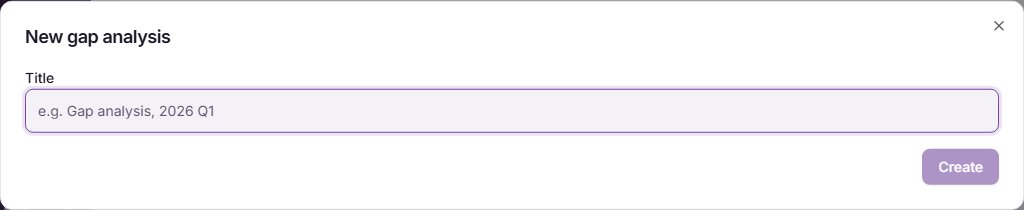
Start an analysis. In the left menu, open the Assessments Hub and select Gap Analysis. In the Assessments card, select New assessment. In New gap analysis, give it a Title that says the period, for example "Gap analysis, first half 2027", and select Create. It appears in the list; select Open.
-
Read the briefing. The first time you open an analysis, Trident shows a briefing: what the analysis scores, how the score is worked out, and the six steps (answer, run signals, evidence, remediate, review and sign off, report). Select Start scoring to begin. It does not show again for that analysis.
-
Set the scope. Open Scope. Choose your Role and enter your Geographies of operation. Answer the yes or no questions about how you process data, or leave them on Not declared. Then select Run applicability: Trident marks as not applicable only the items that a "No" you declared rules out. Leaving a question undeclared never takes an item out of the score. If you know of vendors or partners that are not yet in your Relationships Register, add each one in the card below and select Name this counterparty; Trident raises it as a suggestion on the register for you to accept.
-
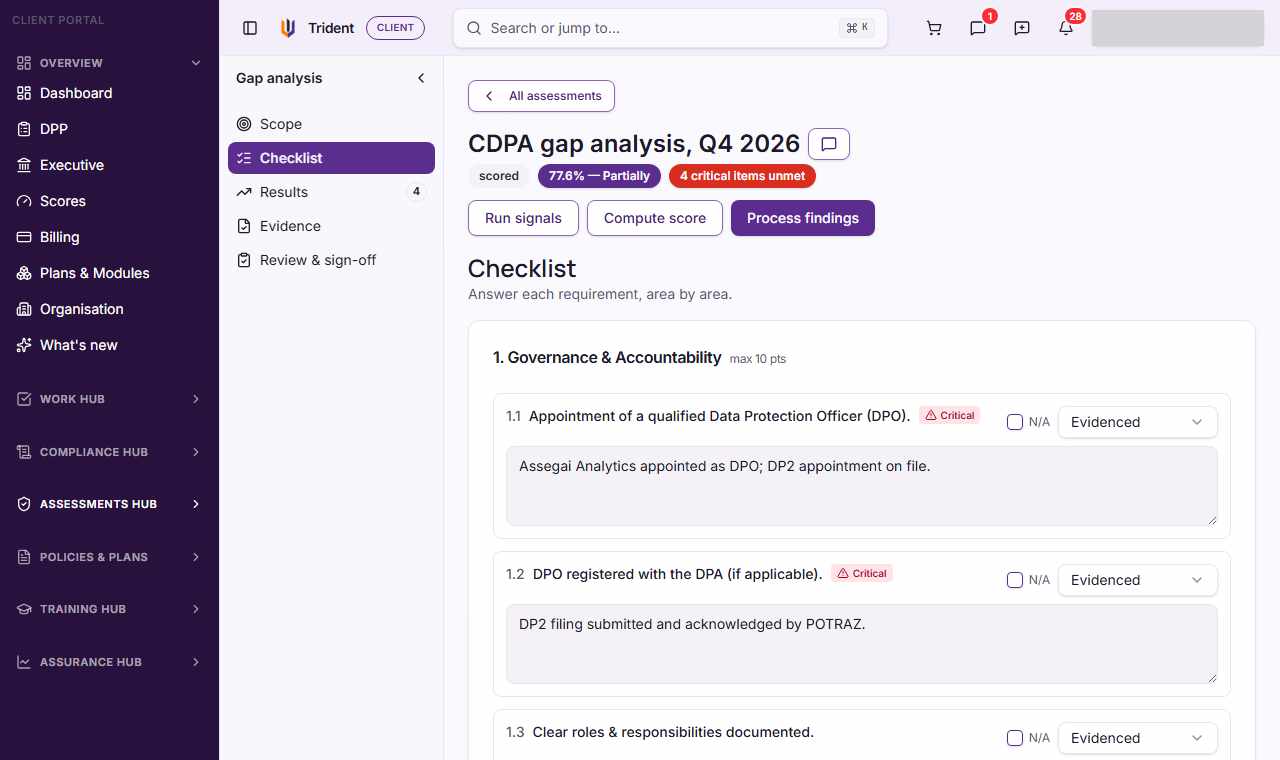
Answer the checklist. Open Checklist. Each area is a card with its items; items marked Critical matter most. For each item, choose Evidenced, Partial, Not evidenced or Unknown. Your choice saves at once. If an item does not fit how you work, tick N/A, write why, and select Mark not applicable. Add a note to any item; it saves when you leave the box.
-
Let Trident suggest answers. Select Run signals at the top of the analysis. For items it can check from your records, such as vendor agreements and training, Trident proposes an answer and marks it as a signal waiting for you to confirm it. Look at each one and choose the answer yourself; your choice is what counts.
-
Score it. Select Compute score. Open Results to see the overall score, the band and the score for each area. You can score again whenever answers change. The Gap Analysis guide explains the bands.
-
Turn gaps into tasks. Select Process findings. Every item that is not evidenced becomes a finding with a task to fix it, and each task gets a due date that the task shows. An item with a task says Remediation task created. Running it again does not create duplicates.
-
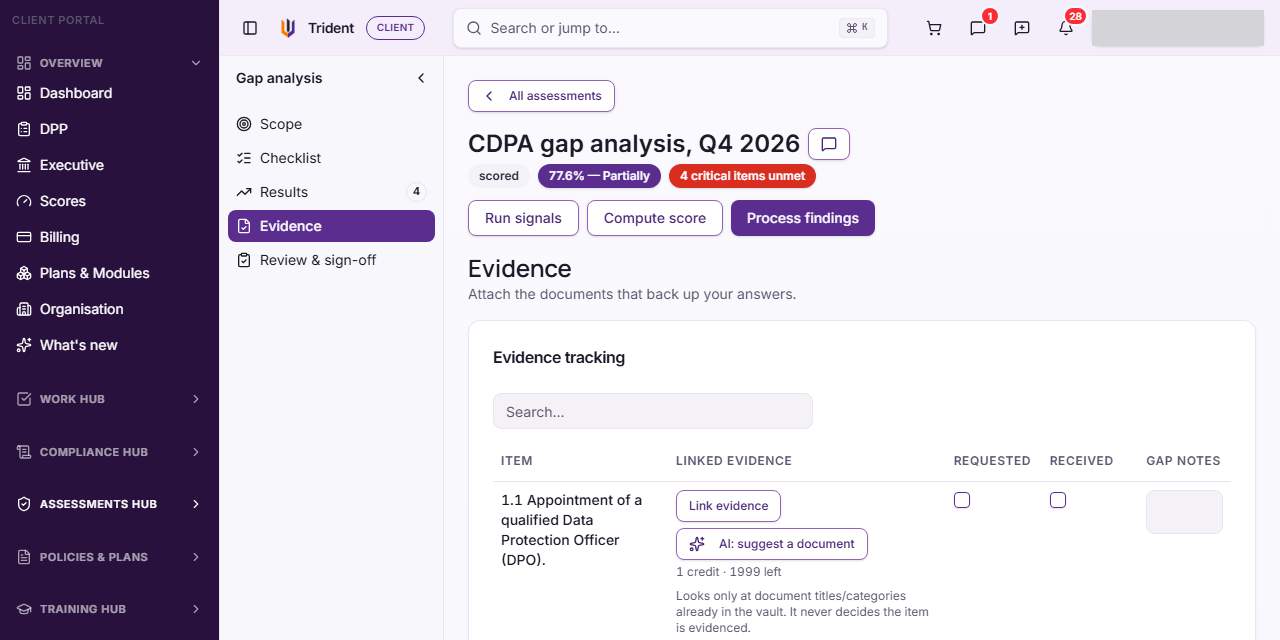
Link evidence. Open Evidence. In Evidence tracking, select Link evidence on an item and pick the document from your files. Tick Requested when you have asked someone for a document and Received when you have it, and use Gap notes for what is still missing.
-
Close findings. Back in Results, select Close (evidence on file) on a finding once its evidence is linked and ticked Received.
-
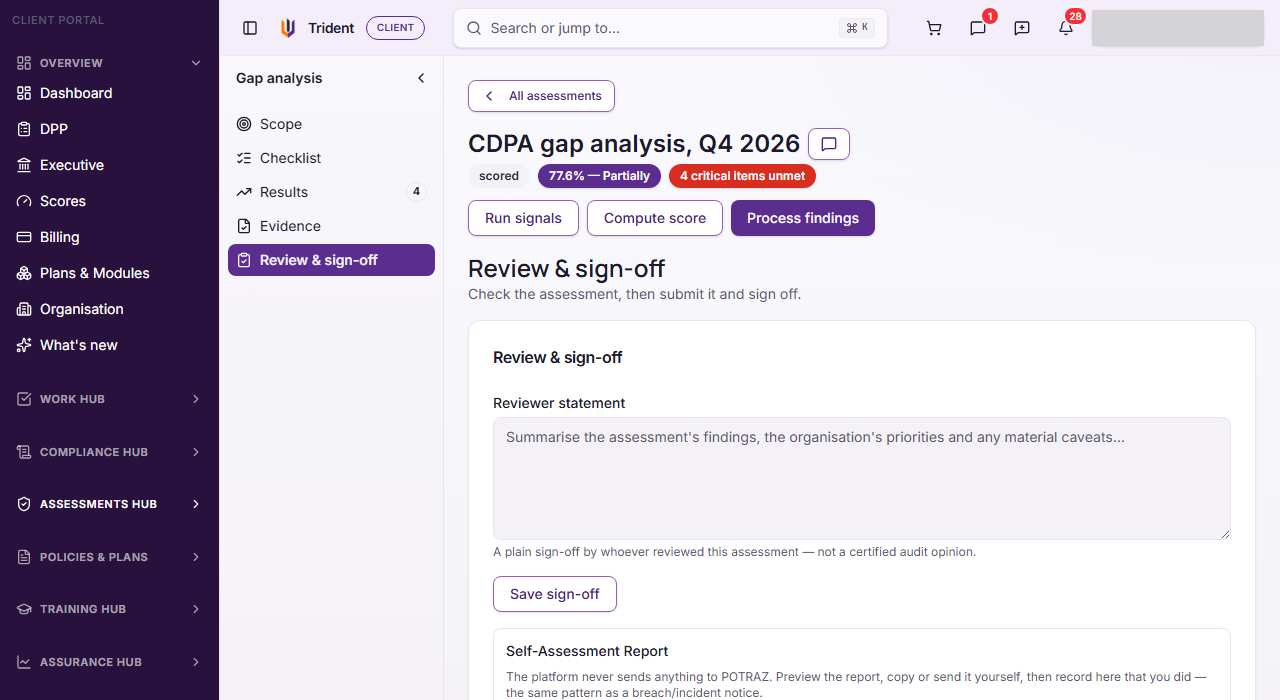
Sign it off. Open Review & sign-off. The person who reviewed the answers writes a Reviewer statement and selects Save sign-off. It is a plain sign-off, not an audit opinion.
-
If you send a report, record it. Trident never sends anything to POTRAZ. To prepare the Self-Assessment Report, select Preview report and copy it, or the Results, into your own email. After you have sent it, add how or when you sent it in the reference box if you like, and select the button that starts I've sent this, which records the submission. Trident files a copy in your files, logs it in Authority Contact, and locks the analysis.
Check it worked
- The Gap Analysis list shows your analysis with its stage, score and band.
- Results shows the overall score and a line for each area, and lists the open findings.
- Your task list has a task for each gap, and the items show Remediation task created.
- After step 11, the analysis can no longer be changed, and the report copy is in your files.
If something goes wrong
- Every box is greyed out. The analysis was recorded as sent and is locked. Start a new analysis for the next period. If you are an executive viewer, you can read but not change it.
- Run signals says "No new signals". Every item it can check already has an answer, or your records do not yet hold what it looks for. Answer those items yourself.
- Close (evidence on file) is refused. Tick Received for the item's evidence in Evidence first.
- Preview report is greyed out. Save the sign-off first, or tick Received on your evidence.
- Gap Analysis is not in the menu, or shows a plan message. The module is not in your plan. The plan message shows how to add it.
Related modules
Last checked against Trident on 2026-10-28.