
Step-by-step guide for client admins and client users
Before you start
- Who can do it. A client admin or a client user can fill in an assessment. Signing needs two different people allowed to sign, as your Organisation's Sign-off policy sets out. An executive viewer can read but not change it.
- What you need. The facts listed in the Cross-border transfers guide: the recipient, the data, how it moves, the contract and what you know about the recipient's security.
- One transfer per assessment. One flow of data to one recipient in one country.
- What it costs. Filling in an assessment is part of the Cross-Border module in your plan. Some optional buttons draft text with AI and show their cost beside them.
Steps
-
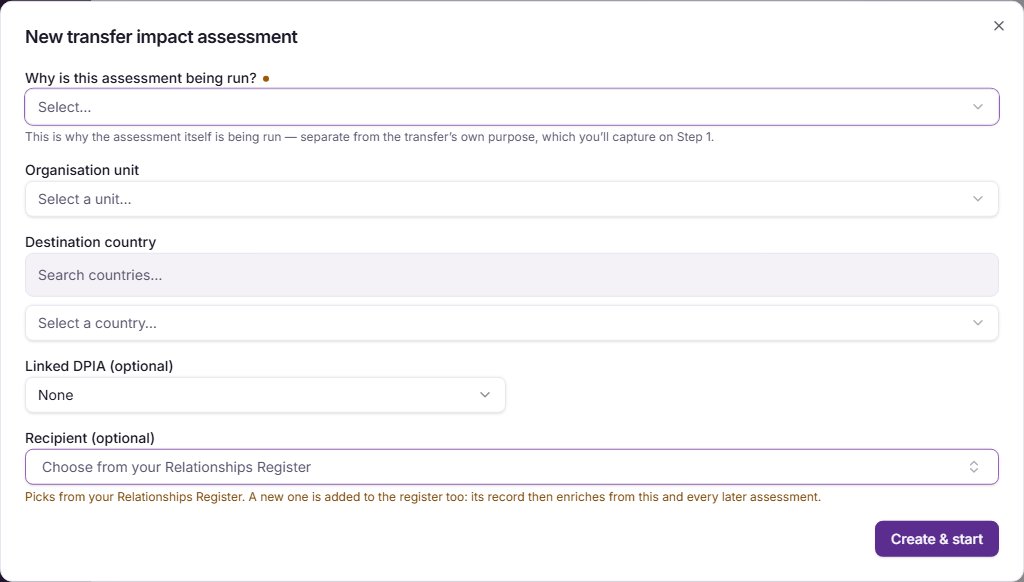
Start an assessment. In the Compliance Hub, select Cross-Border Transfers, open the Assessments tab and select New assessment. In New transfer impact assessment, answer Why is this assessment being run?, choose the Destination country, and if you can, pick the Recipient (optional) from your Relationships Register and a Linked DPIA (optional). Select Create & start.
-
Read the briefing. A new assessment opens on a briefing: what a TIA is, the seven steps and what is expected of you. Select Start assessment. You can read it again at any step with About this assessment.
-
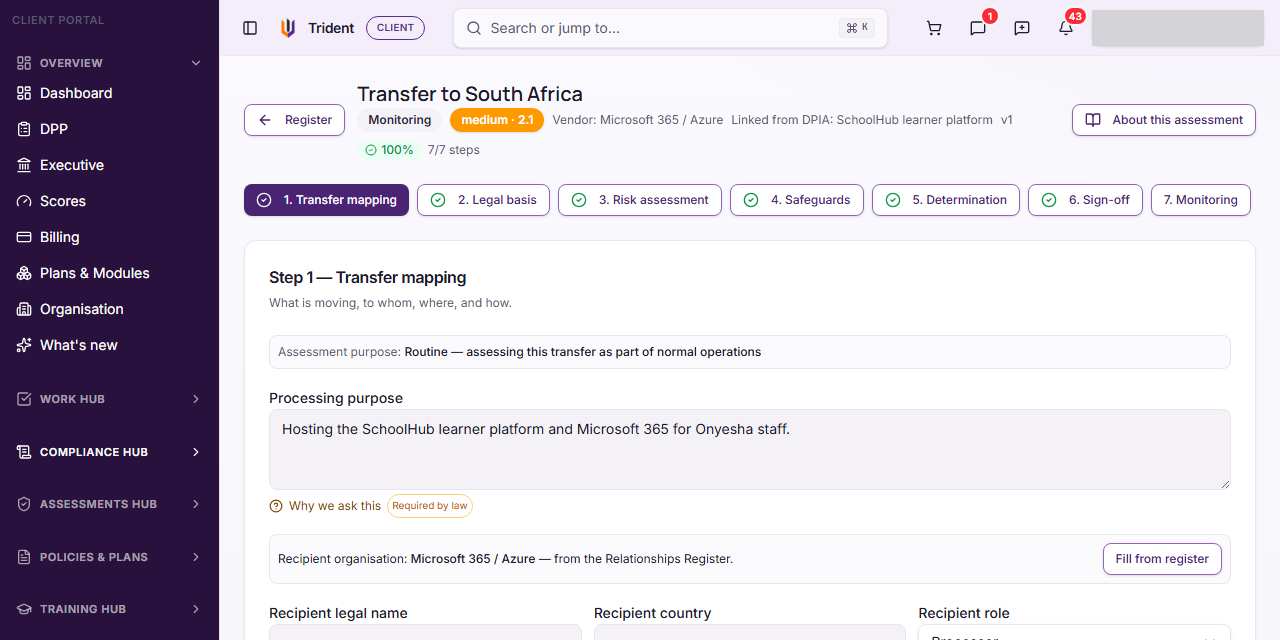
Transfer mapping. Describe the transfer. If you picked a recipient, Fill from register copies its details in. Check the Recipient legal name, choose What personal data is transferred, whose data it is, and the Transfer method. Every step ends with Save, to stay, and a button to save and move on.
-
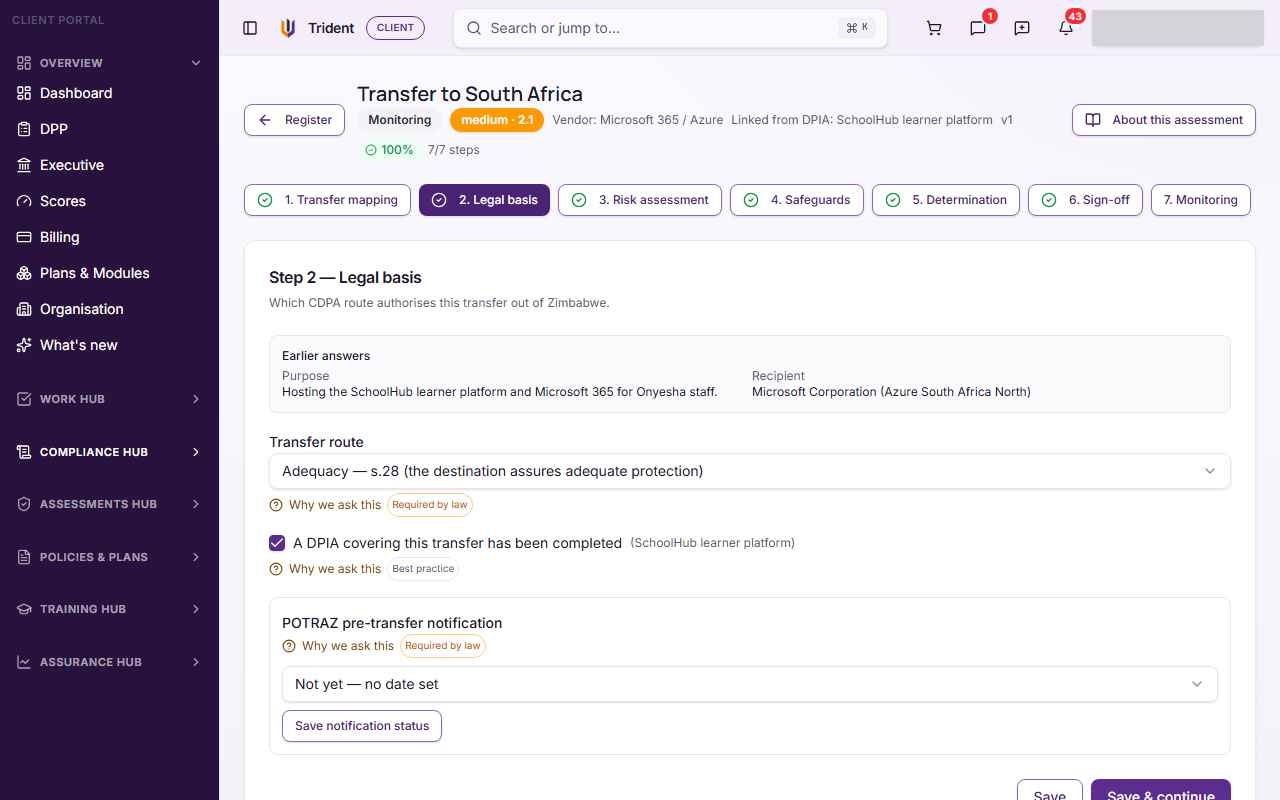
Legal basis. Choose the Transfer route the step offers, or Not yet determined. If you choose an exception route, the step asks which ground applies. Ask your DPO when you are not sure. In the POTRAZ pre-transfer notification box, record whether POTRAZ has been notified, with the date and reference, or the planned date. Select Save notification status. A planned date becomes a task.
-
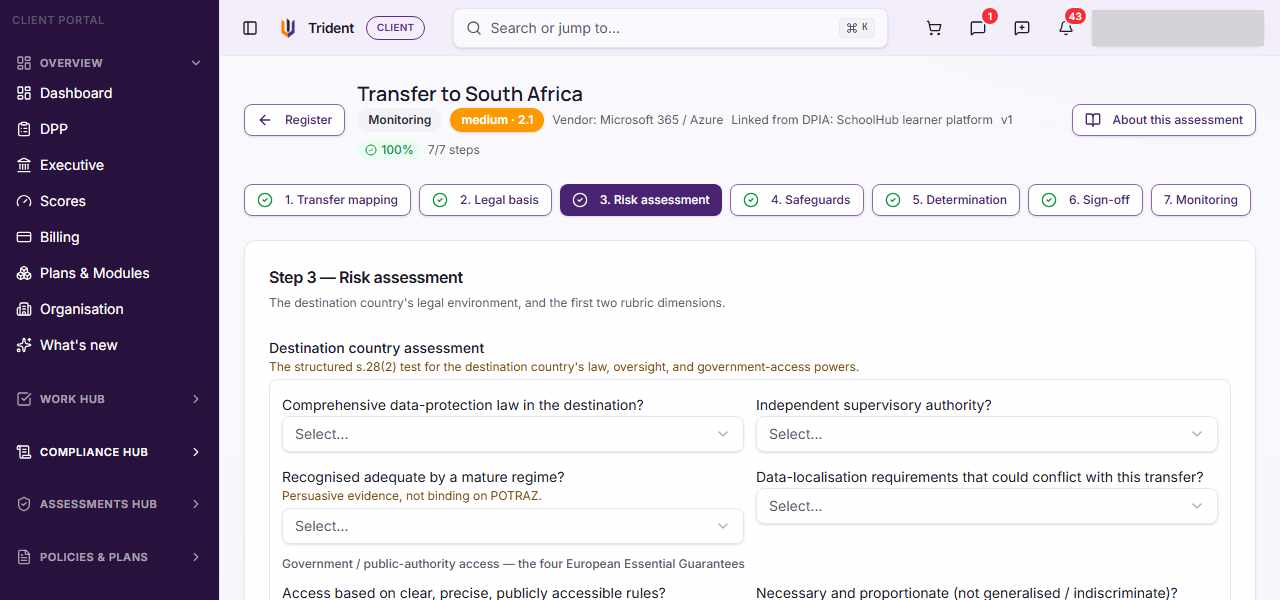
Risk assessment. Answer the questions about the destination country. Where Trident holds a profile of that country, Pre-fill from library fills in its facts and sources for you to check. List what you relied on under Sources relied on with Add source. Trident suggests a score for the first two dimensions; select Accept, or choose another score and give your reason.
-
Safeguards. Describe the Recipient security measures, its Breach history, its certifications, and what The contract covers. Link the contract or DPA from your files; Trident also links it to the vendor. Use Add evidence for the recipient's own policies or certificates. Score the safeguard dimensions.
-
Determination. Score the last dimension and select Save score & recompute. Read the Weighted score, the Risk level and the Required action. Select Continue to sign-off.
-
Sign-off. The DPO of record selects Sign as DPO, and an Authorised representative selects Sign as Representative. They must be two different people. Then select Continue to monitoring.
-
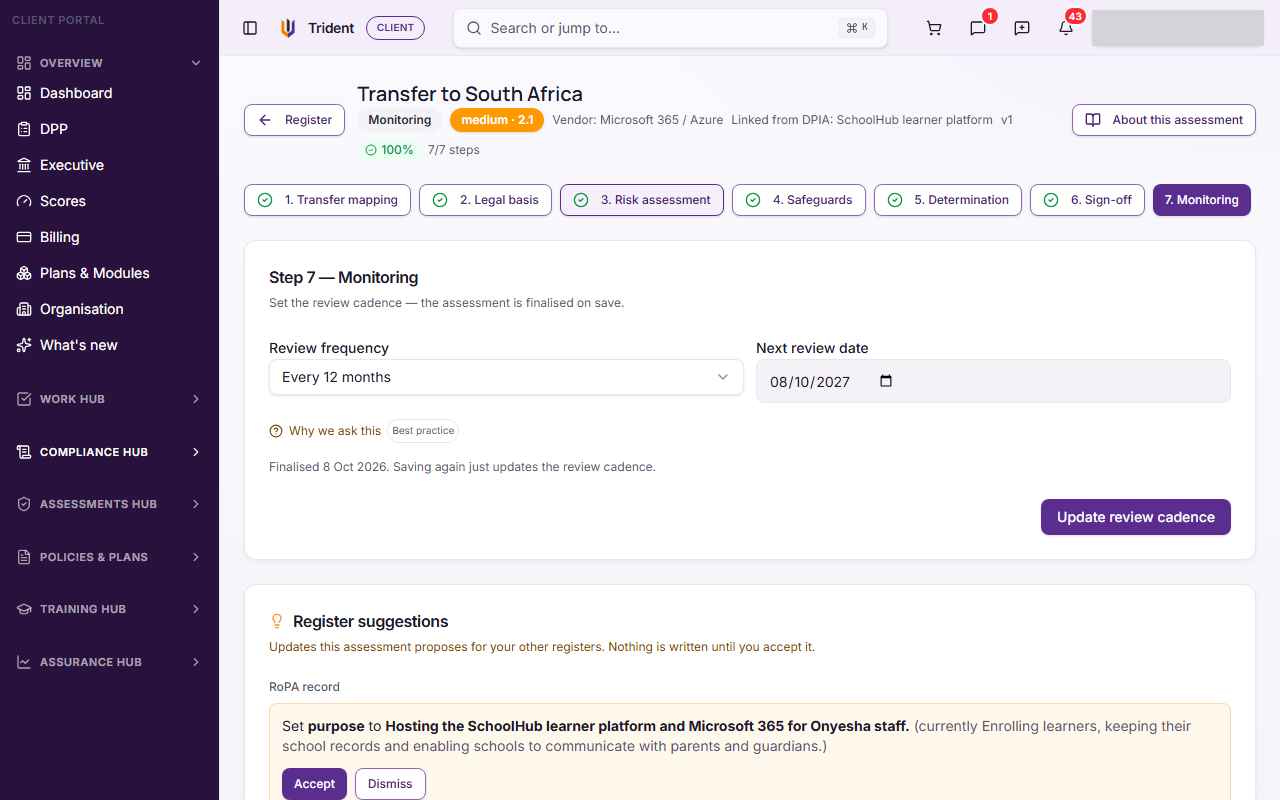
Monitoring. Choose a Review frequency and check the Next review date. Select Finalise assessment. This finishes the assessment.
-
Accept or dismiss the register suggestions. A finished assessment can propose updates to the Relationships Register, a RoPA activity and the Risk Register under Register suggestions. Select Accept or Dismiss for each. Nothing changes until you accept it.
-
If the result is high or critical, put the extra safeguards in place, then select Run follow-up assessment. It starts a new assessment with your mapping and legal basis answers already filled in.
Check it worked
- The Assessments tab shows the assessment with its risk and a next review date, and the Transfer register lists the transfer.
- Determination shows a risk level and a required action.
- Both signatures show on Sign-off.
- Any suggestion you accepted shows in the Relationships Register, the RoPA or the Risk Register.
If something goes wrong
- A step will not open. Steps open in order. Finish and save the one before it.
- You cannot continue past Risk assessment. You chose a score other than the suggested one without a reason. Write the reason.
- No Determination result yet. Every dimension needs a score. Go back to the step that is missing one.
- Sign as DPO or Sign as Representative is greyed out, or refused. Your Organisation's Sign-off policy decides who may sign, and the two signatures must come from different people.
- There is no assessment report button. The assessment report is prepared by your consultant or Assegai, not from a client account.
- Cross-Border Transfers shows a plan message. The module is not in your plan. The plan message shows how to add it.
Related modules
Last checked against Trident on 2026-10-28.