
Module guide for client admins and client users
What it is
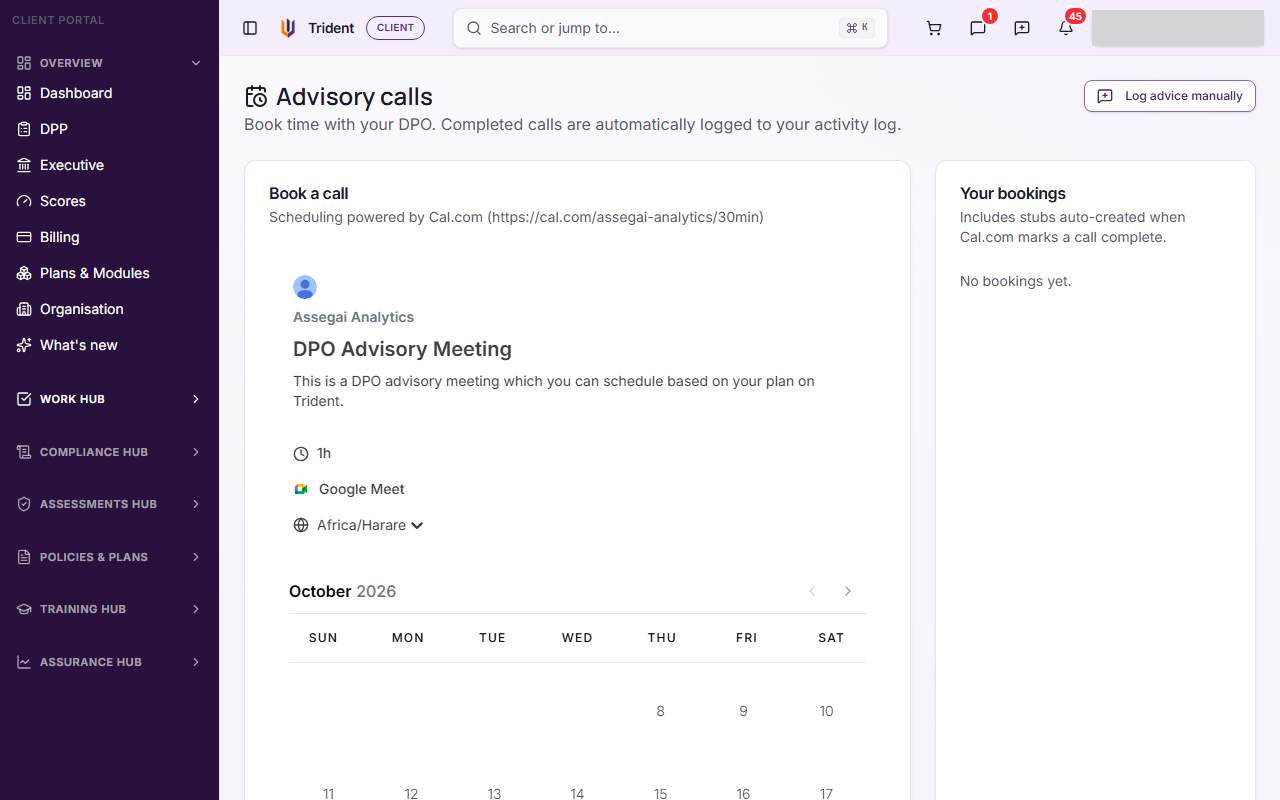
Advisory is where you book a call with your DPO and keep a record of the advice. The page is called Advisory calls, in the Work Hub. In the page's own words: "Book time with your DPO. Completed calls are automatically logged to your activity log."
The page has two parts:
- Book a call is a scheduler run by Cal.com, a booking service, shown inside the page. You pick a time and confirm there.
- Your bookings lists your calls once Cal.com has told Trident about them, with each call's status. You can add a note to a call, and the page also lets you record advice you were given outside a call.
When to use it
- When you are unsure about a decision, such as a new supplier that keeps data abroad, or whether an incident is a breach.
- To go through a result with your DPO, such as a gap analysis or a transfer assessment.
- To prepare for something coming up, such as a new system, a client's data protection questions or a review.
- After advice you were given another way, by phone or email, so it is on record too.
What to gather first
- Your question, in a sentence or two. The booking form asks What is this meeting about?
- The records the question is about, so you can share them on the call. Their addresses in Trident are easy to paste into the notes.
- Who else should join. The booking form lets you add guests.
Steps
The step-by-step guide has every button. In short:
- Open Advisory in the Work Hub.
- In Book a call, choose a day and a time, answer the form, and select Confirm in the scheduler.
- Check the call appears under Your bookings.
- After the call, select Annotate on it to write down the advice.
- For advice given outside a call, select Log advice manually.
Example entries
| Where | Example |
|---|---|
| What is this meeting about? | "We want to start using a payroll service hosted in South Africa. What do we need to check first?" |
| A note on a call (Annotate) | "DPO advised a transfer assessment before signing. Action: start the TIA this week; ask the vendor for its DPA." |
| Advice logged manually | "Phone call with the DPO about a misdirected email: not a breach, as the recipient deleted it and confirmed in writing. Note kept in Files." |
Common mistakes
- Looking for the call straight away. A new booking shows under Your bookings once Cal.com has told Trident, which can take a moment. Refresh the page.
- Changing or cancelling in Trident. Trident has no button to move or cancel a call. Do it through Cal.com, for example from its confirmation email. The status in Your bookings follows.
- Keeping the advice in your head. Use Annotate after each call. The note joins the call's record in your activity log.
- Forgetting advice given another way. Advice by phone or email belongs on record too. Use Log advice manually.
Related modules
How it links with other modules
- Activity log (PAL). Completed calls are logged there, and a call shows PAL logged once they are. Your notes and manual advice go there too.
- Notes & Comments. Each call has a notes button for questions and follow-ups, like other records.
- Work Hub. The Work Hub overview shows your next advisory booking.
- Your other records. Advice often leads to work elsewhere, such as a transfer assessment or a change to a policy. Record that work in its own module.
Last checked against Trident on 2026-10-29.