
Step-by-step guide for client admins and client users
Before you start
- Who can do it. A client admin or a client user. Your organisation's plan needs the Advisory module; without it, the page shows a plan message instead.
- Your question. Have it ready in a sentence or two, and the records it is about.
- Your details. The booking form fills in your name and email from your Trident profile. Keep them as they are, so the call is filed with your organisation.
Steps
-
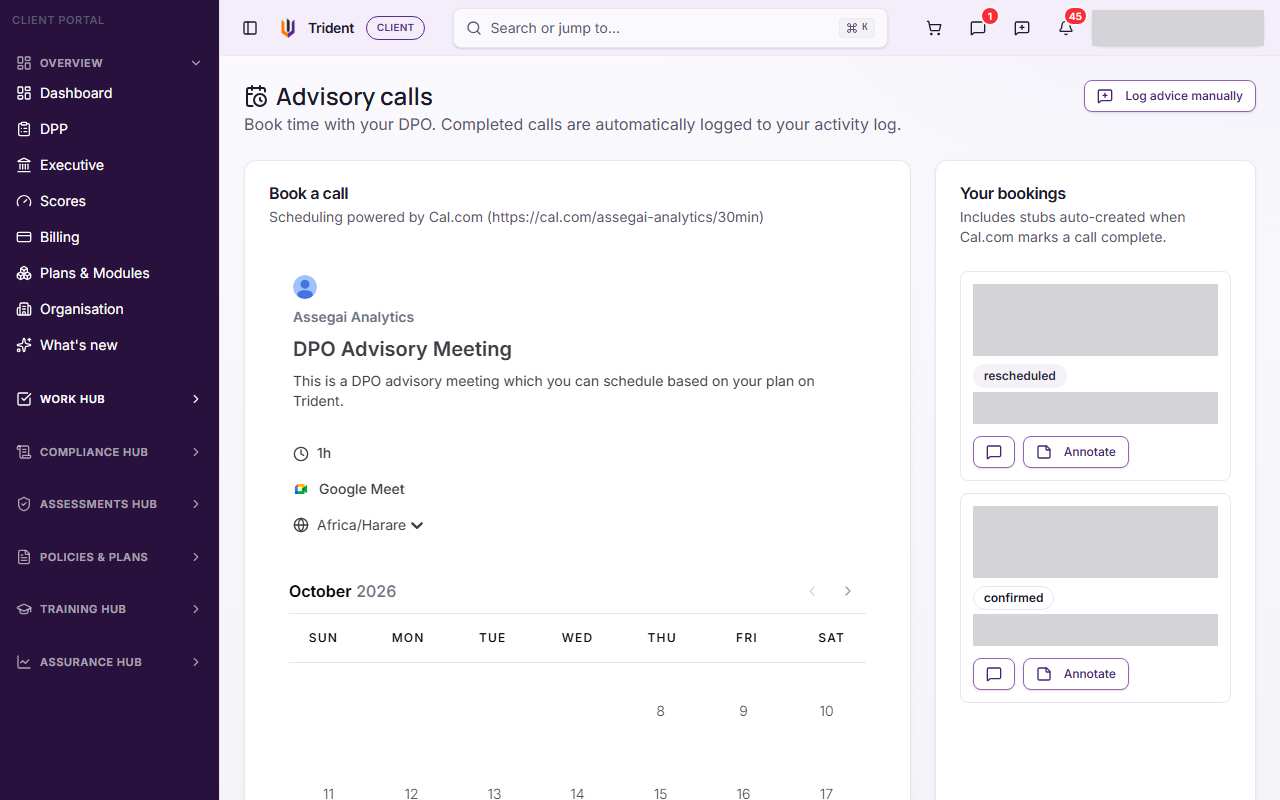
Open Advisory. In the left menu, open the Work Hub and select Advisory. The page is Advisory calls.
-
Pick a time. In Book a call, the scheduler shows the meeting, DPO Advisory Meeting, its length and a calendar. Check the time zone under the meeting length. Choose a day, then a time.
-
Answer the form and confirm. Check Your name and Email address, answer What is this meeting about?, and add anything else in Additional notes. Use Add guests to invite colleagues. Select Confirm. Back returns to the calendar.
-
Find the call in Your bookings. It appears in Your bookings on the right with its date, time and status. If it is not there yet, refresh the page after a moment.
-
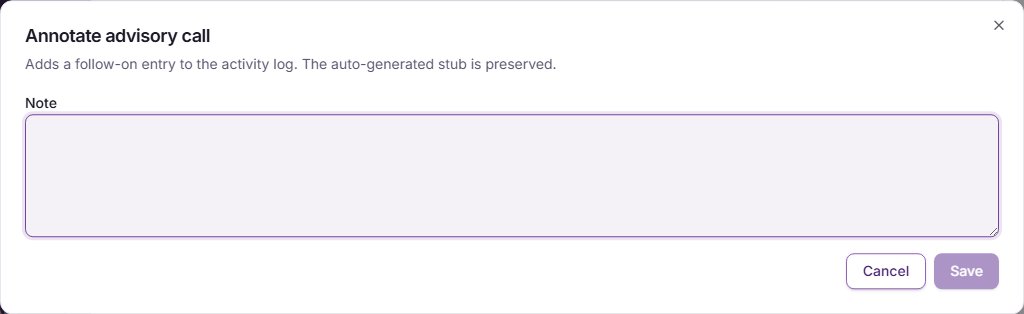
After the call, write down the advice. On the call, select Annotate. In Annotate advisory call, write the advice and any actions in Note, and select Save. The note joins the call's record in your activity log. To change it later, select Edit note.
-
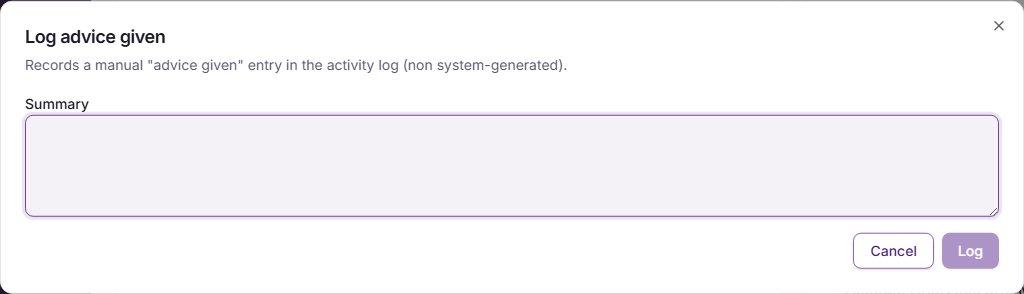
Record advice given another way. For advice by phone, email or in person, select Log advice manually at the top of the page. In Log advice given, write a Summary and select Log.
Check it worked
- Your bookings lists the call with its date, time and status.
- After the call is marked complete, it shows PAL logged.
- Your notes show on the call, and your manual advice is in the activity log.
If something goes wrong
- The scheduler says Cal.com is not yet configured. Booking is not set up for Trident yet. Tell Assegai.
- The page shows a plan message. The Advisory module is not in your plan. The plan message shows how to add it.
- The call is not in Your bookings. Wait a moment and refresh. Cal.com tells Trident about each booking shortly after you confirm.
- You need to move or cancel the call. Trident has no button for it. Do it through Cal.com, for example from its confirmation email; the status in Your bookings follows.
Related modules
Last checked against Trident on 2026-10-29.