
Step-by-step guide for client admins and client users
Before you start
- Who can do it. A client admin or a client user can add and change tasks. An Executive viewer can read them, and the buttons that change a task stay greyed out.
- Where tasks come from. Every task has an origin: Added by a person (you or a colleague), Recurring (the platform repeats it on a schedule), Regulatory deadline, or From your plan (your Data Protection Plan created it). The origin decides what you can edit, as the steps show.
- Nothing to gather. The steps use only what is already on the screen.
Steps
-
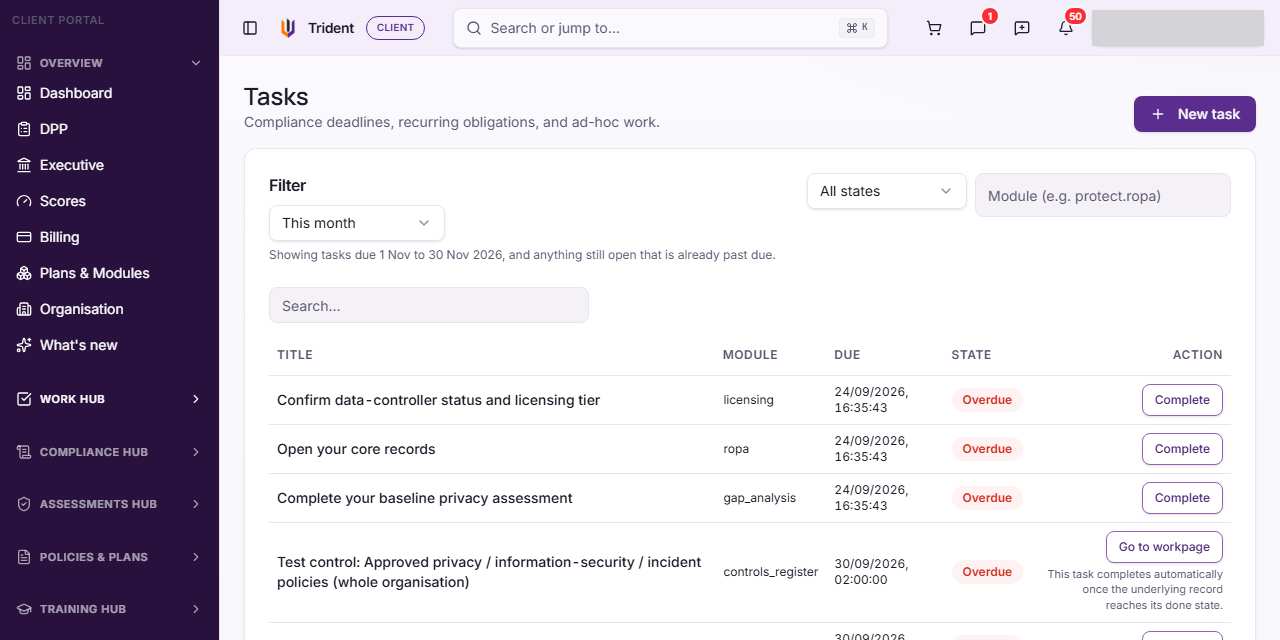
Open Tasks. In the left menu, open the Work Hub and select Tasks.
-
Choose what to see. Period sets the span of due dates. The line under it says which span you are looking at, and that anything still open and already past due stays in view. The state filter starts at All states; pick one state to narrow it. The module box takes a code as shown in the Module column; its placeholder gives an example.
-
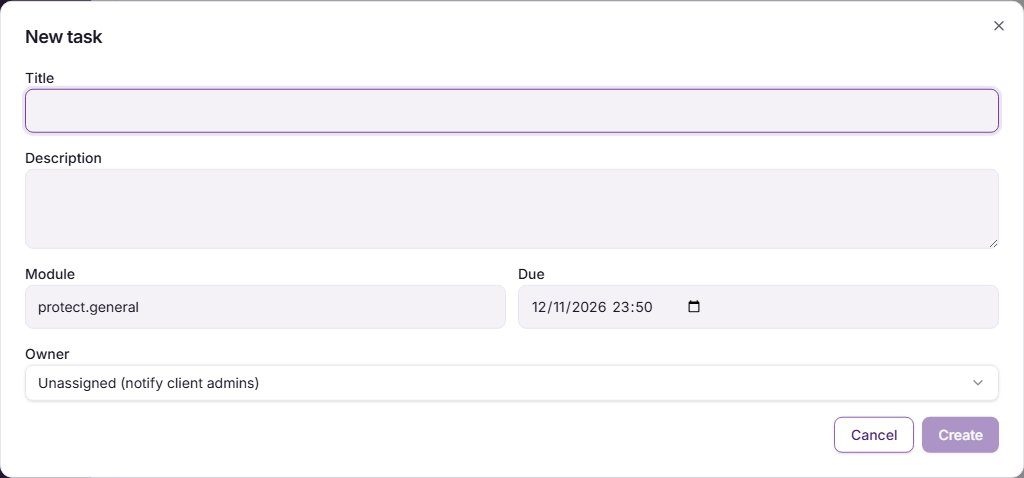
Add a task. Select New task. Fill in Title, add a Description if it helps, and set Due. Module starts with a general code; keep it unless you want the task filed under another module's code, as shown in the Module column. In Owner, pick a person, or leave Unassigned (notify client admins). Select Create.
-
Start a task. On an open task, select Start in the State column. It becomes In progress. You can also change Owner straight from the list.
-
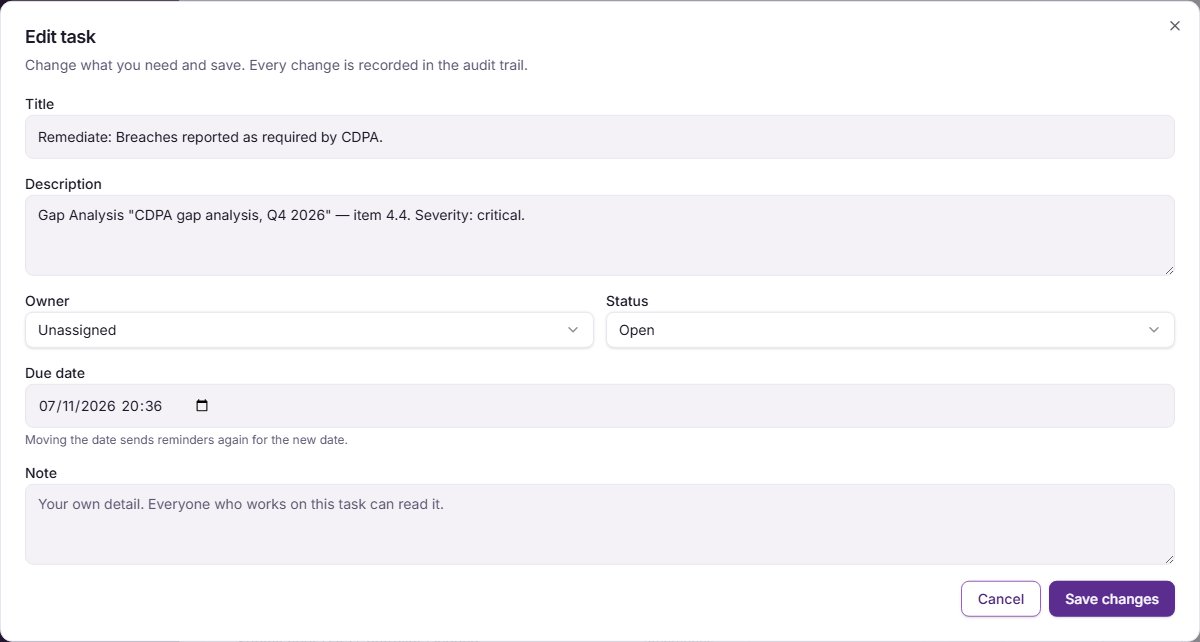
Edit a task. Select a task's row to open its window, then Edit. In Edit task you can change the Title, Description, Owner, Status (Open or In progress), Due date and Note, then select Save changes. Moving the date sends reminders again for the new date. Done and cancelled tasks cannot be edited: use Reopen first.
-
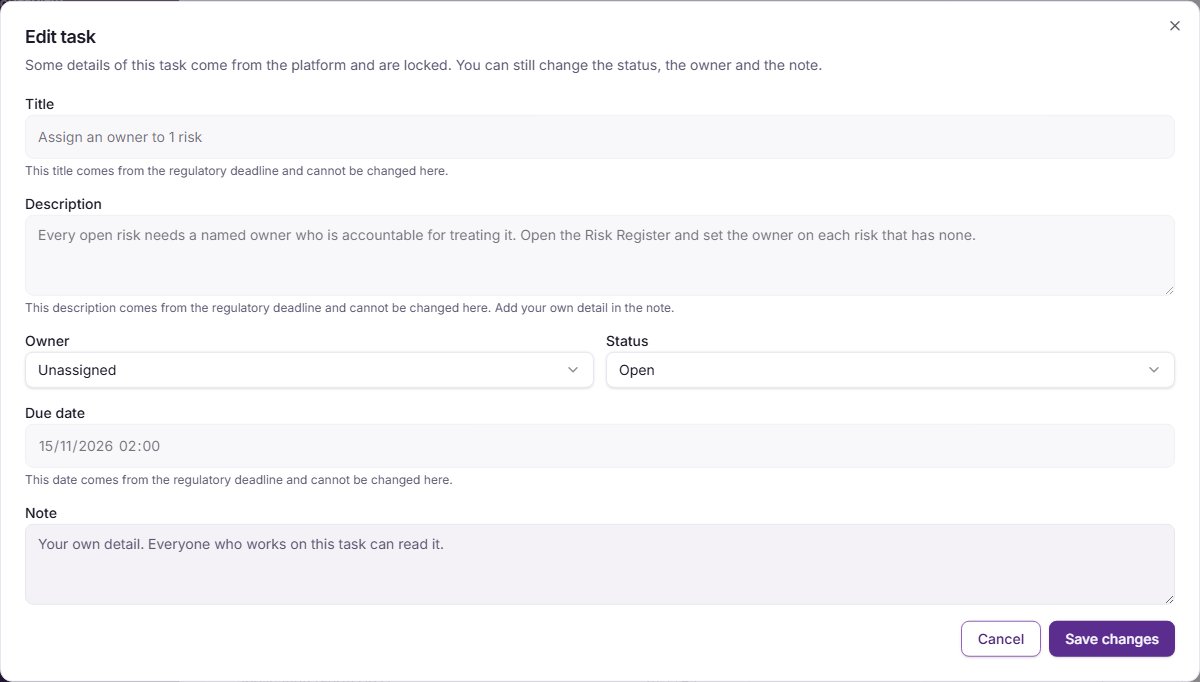
Know what is locked. A Regulatory deadline task or a task From your plan keeps its title, description and due date, and the window says why under each one, for example "This title comes from the regulatory deadline and cannot be changed here." You can still change its Status, Owner and Note. Use the Note to add your own detail.
-
Complete it. Select Complete in the list or in the task's window. Some tasks show Auto-completes when done or a Go to button instead. Do the work on that page, and the task completes when the work is recorded. Reopen brings a done task back.
-
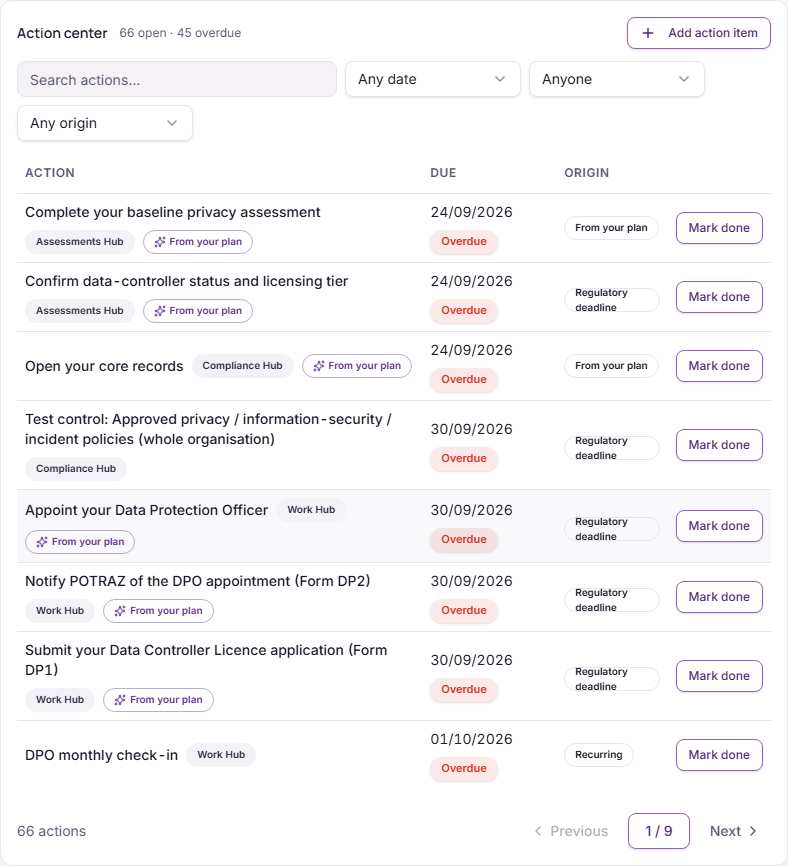
Use the Action center. On the Dashboard, open Actions. The Action center lists your open tasks, most pressing first, with the count of open and overdue ones. Narrow it by Due (Any date), Owner (Assigned to me, Assigned to others, Unassigned) or origin, or search it. A row opens the same task window. Each hub's overview page shows the same list for that hub. Mark done completes a task. Add action item opens New action item for a quick task. Needs your review lists actions suggested from your assessments, each with Accept or Reject.
-
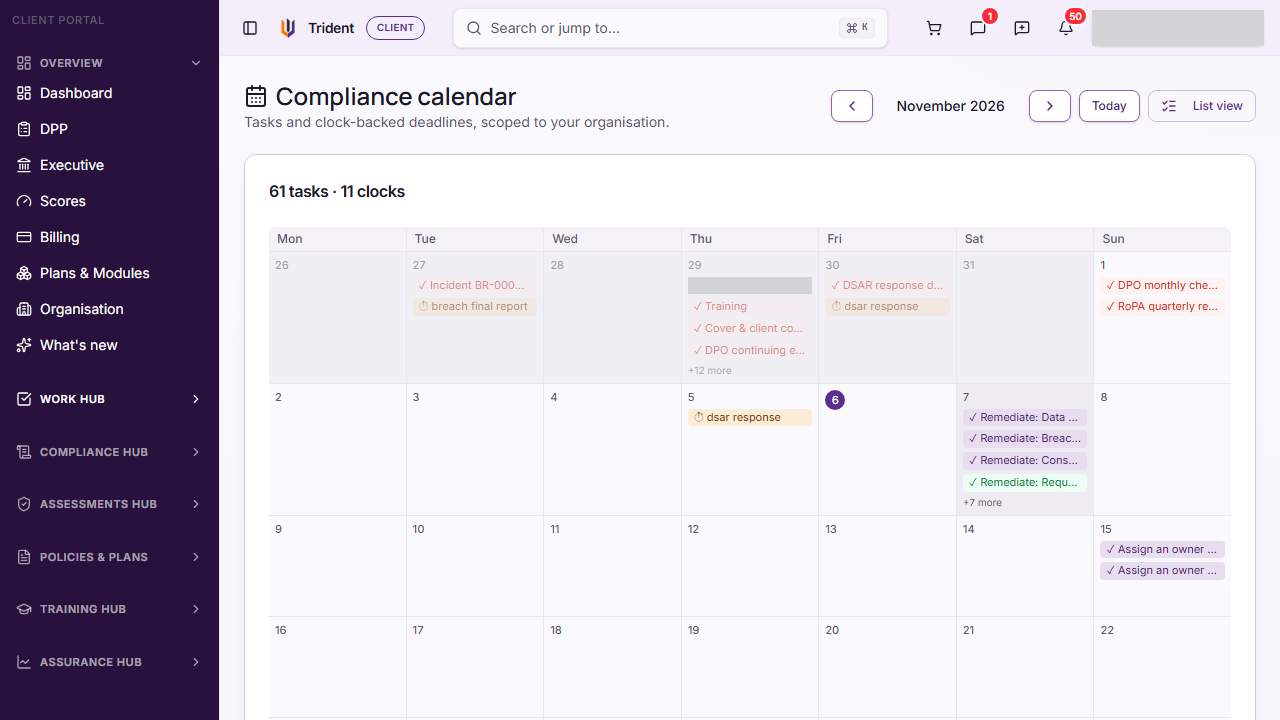
See tasks on the Calendar. Under the Work Hub, select Calendar. The Compliance calendar shows tasks and deadline clocks by month; each clock is marked Statutory or Guidance. Use the arrows to change month, Today to come back, and List view to return to Tasks.
Check it worked
- A message confirms the change, and the State badge shows the new state.
- The list, the Action center and the Calendar agree, because they read the same tasks.
- Under the Assurance Hub, Audit records each edit, and its Changes column shows the old and new values.
If something goes wrong
- A task you started turns back to Overdue. Overdue is set automatically a few minutes after the due date passes, even for a task in progress. Complete the task or, when the date is unlocked, move the Due date.
- The title, description or due date is greyed out. The task comes from a regulatory deadline or your plan. Use the Note for your own detail.
- A save is refused. The window shows the reason in red under the form. An owner must be an active member of your organisation.
- The buttons are greyed out. You may be an Executive viewer, who can read but not change tasks. Ask a client admin.
- Complete is missing. The task completes itself once the work behind it is recorded. Use Go to to reach that page.
Related modules
Last checked against Trident on 2026-11-05.