
Step-by-step guide for client admins
Before you start
- Who can do it. A client admin. Members and Invitations show only to a client admin, so a client user or an Executive viewer will not see them.
- What you need for each person. Their email address and full name. Their position is optional.
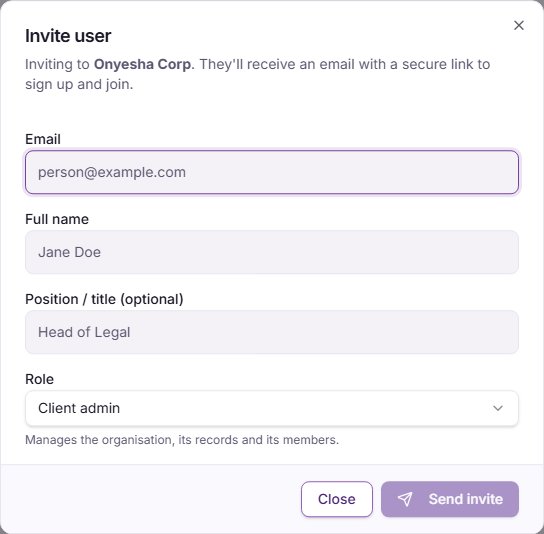
- Choose a role. The invite window says what each one can do:
- Client admin: "Manages the organisation, its records and its members."
- Client user: "Works on the organisation's records."
- Executive viewer: "View only: reads the dashboard and every register, and can add comments. Cannot change records."
Steps
-
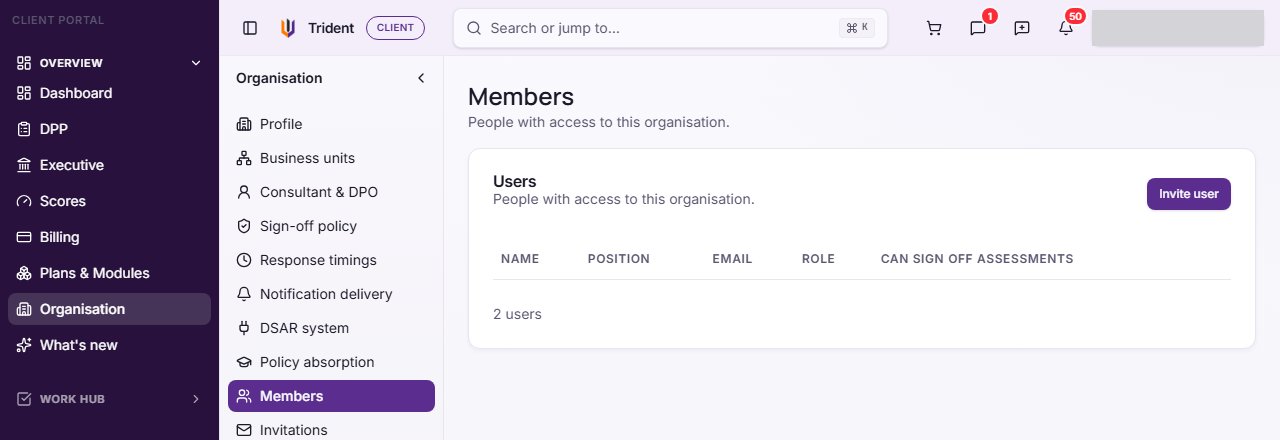
Open Members. In the left menu, under Overview, select Organisation, then select Members in the page's sections. The Users card lists the people with access.
-
Start the invitation. Select Invite user. The window says which organisation you are inviting to, and that the person will get an email with a secure link to sign up and join.
-
Fill in the person's details. Enter their Email and Full name, add Position / title (optional) if you want, and pick their Role. The line under Role repeats what that role can do.
-
For an Executive viewer, choose where they start. The box Open the Executive workspace first when they sign in is ticked by default. The screen says it applies once that workspace is switched on for your organisation, and that they can change it in Settings.
-
Send it. Select Send invite. The window then shows the invite link with a copy button. If the email could not be sent, a message says so; copy the link and pass it on yourself.
-
Decide who can sign off. Back in Members, the Can sign off assessments switch sits on each person's row. A client admin shows Included with admin role, and an Executive viewer shows Not available: view-only access. The Sign-off policy section of the Organisation page sets the rules for signing.
-
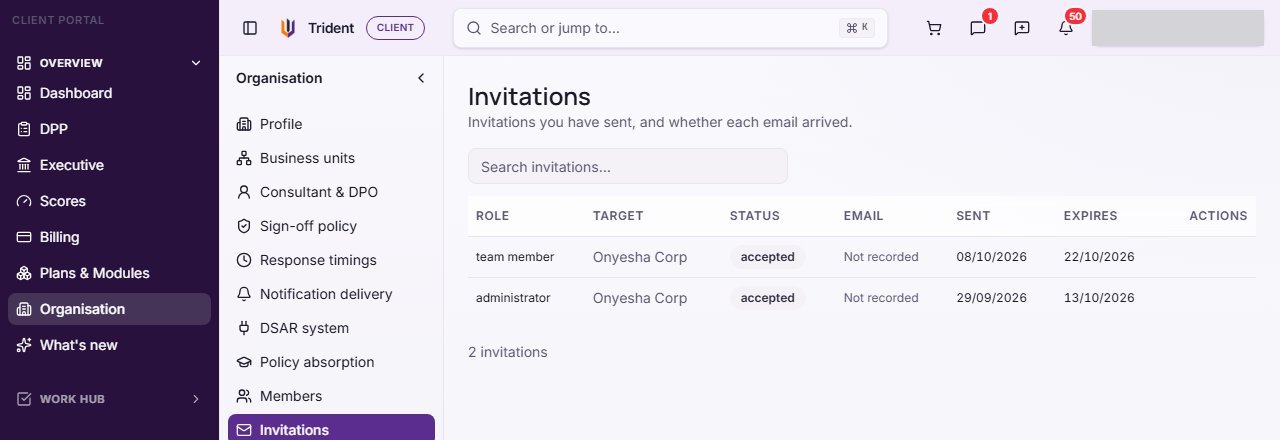
Follow the invitation. Select Invitations. Each row shows the role, its Status (pending, accepted, expired or revoked), whether the email arrived, when it was sent and when it Expires. The row menu offers Copy invite link, Resend and Revoke while an invitation is pending. An expired one offers Resend, which sends it again. Accepted and revoked invitations have no actions.
-
Remove someone. In Members, open the person's row menu and select Remove from organisation…. You can remove a Client user or an Executive viewer. The window says they lose access straight away, that their account stays and the notes and comments they wrote stay under their name, and that you can invite them again later. Your own row has no remove option, and a client admin is removed by Assegai, not from this screen.
Check it worked
- The invitation shows in Invitations as pending, and its email column says whether the mail arrived (for example Delivered).
- After the person accepts, the invitation shows as accepted and they appear in Members with the role you chose.
- A removed person no longer appears in Members.
If something goes wrong
- You cannot see Members or Invitations. Only a client admin sees them. Ask a client admin to invite for you.
- Send invite is greyed out. It needs an Email and a Full name.
- The email shows Bounced, Delayed, Marked as spam or Not recorded. Check the address. A pending invitation can be revoked and sent again with the right one, and Copy invite link gives you the link to pass on yourself.
- An invitation shows expired. Select Resend on its row.
- A person has no Remove option. Your own row never has one, and a client admin cannot be removed from this screen.
Last checked against Trident on 2026-11-06.