
Step-by-step guide for client admins
Before you start
- Who can do it. A client admin.
- Two different routes. A plan or module you add to your cart is paid for: checkout issues an invoice, and you pay it afterwards. A code you redeem activates the plan or module straight away, with no cart and no invoice. Pick one route for a given plan or module, so you do not redeem a code and also pay for the same thing.
- Prices. Plans and modules have a price on their card; this guide quotes none. Current prices are on the pricing page.
Steps
Steps 1 to 6 add a plan or module through the cart. Steps 7 and 8 redeem a code.
-
Open Plans & Modules. In the left menu, under Overview, select Plans & Modules, then Plans & modules. Plans are listed first, then add-on modules.
-
Add it to your cart. Select Add annual or Add monthly on the plan or module you want. Nothing is charged by adding it.
-
Open your cart. Select the cart icon at the top of the page. Your cart lists the Items you have added. The total is an estimate; it is fixed once the invoice exists.
-
Apply a code, if you have one. Under Have a code?, enter it and select Apply. A code here discounts or covers matching items in this cart, and an item it covers is marked. If the code does not match, the screen says why, for example that it is reserved for another organisation or is no longer valid.
-
Choose how you expect to pay. Under Payment method, pick Pay by card (Stripe), Bank transfer or Pay later.
-
Check out. Select Checkout. Checkout always issues an invoice, whichever method you chose, and payment is a separate step. Find the invoice under Billing, Invoices, and pay it as Pay an invoice and send proof describes.
-
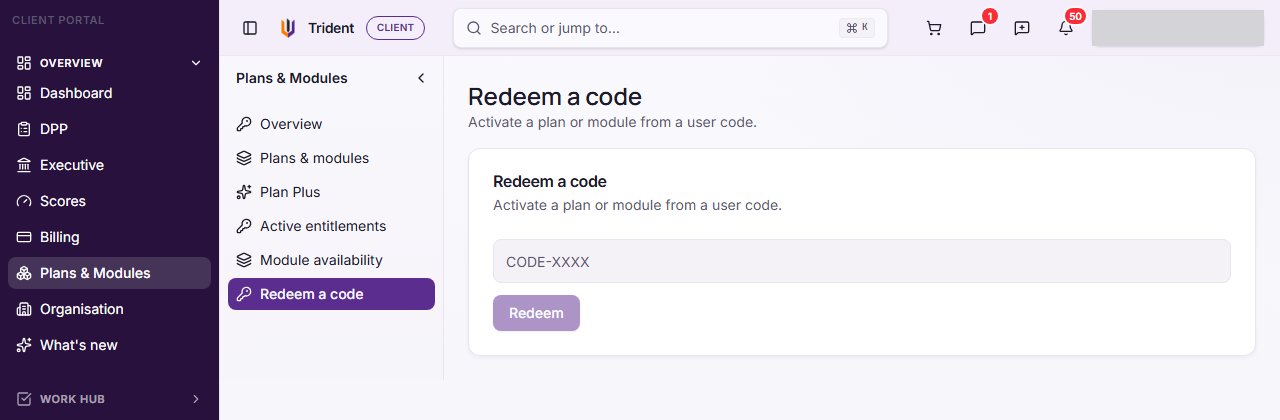
Open the code box. Under Plans & Modules, select Redeem a code.
-
Enter the code and redeem it. Type or paste the code and select Redeem. The screen says how many entitlements were granted. Access starts straight away, and no invoice is made.
Check it worked
- Added through the cart: the invoice shows under Billing, Invoices, and the module is usable once it is paid and confirmed.
- Redeemed: the plan or module shows under Active entitlements in Plans & Modules.
If something goes wrong
- The cart says it is empty. Add a plan or module first.
- A code is refused in the cart. The message tells you whether it does not match anything in the cart, is reserved for another organisation, or is no longer valid. A code that has been used is no longer valid.
- You redeemed a code and also added the same module. Remove the item from your cart before you check out, so you are not invoiced for it.
- A module is still locked. A module you added through the cart unlocks once its invoice is paid and the payment is confirmed.
Last checked against Trident on 2026-11-06.