
Step-by-step guide for client admins and client users
Before you start
- Who can do it. A client admin or a client user. Your organisation's plan needs the template library to add copies; without it, the page is preview only and shows a Preview only badge that asks you to upgrade.
- What a template is. A ready-made document, written by Assegai, that you add to your own Files and then edit. It is a starting point for you to check and adapt, not a finished document for your organisation.
Steps
-
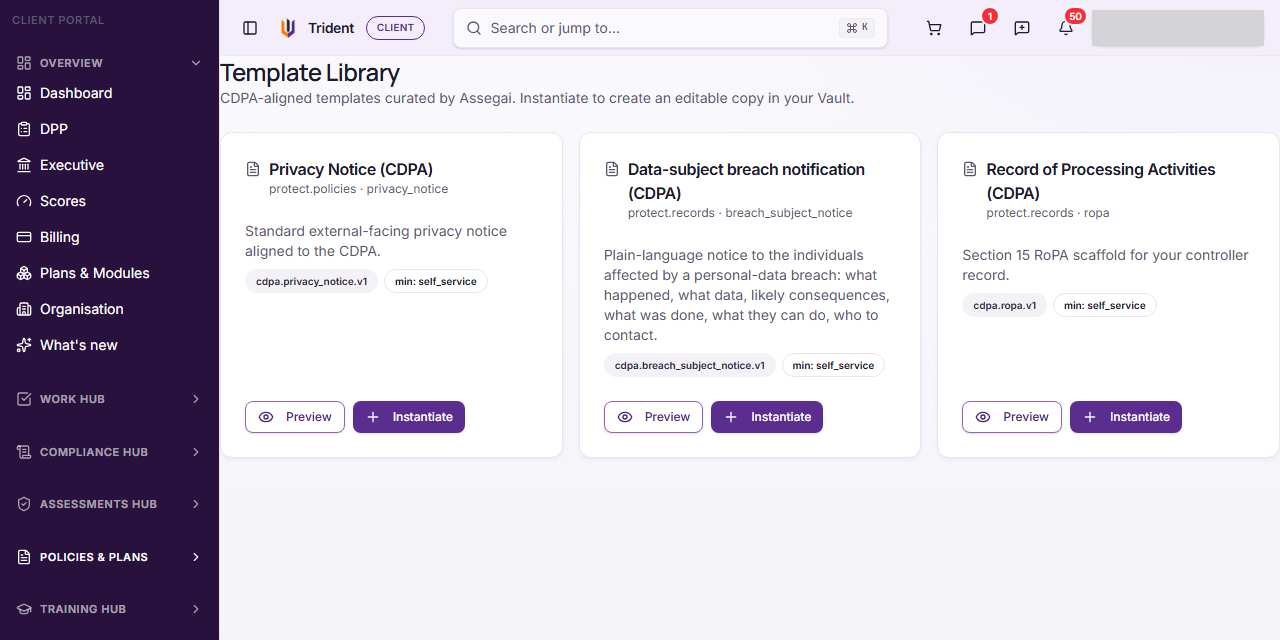
Open the library. In the left menu, open Policies & Plans and select Templates. The page is the Template Library; each card shows the template's name, its module and document type, and a code.
-
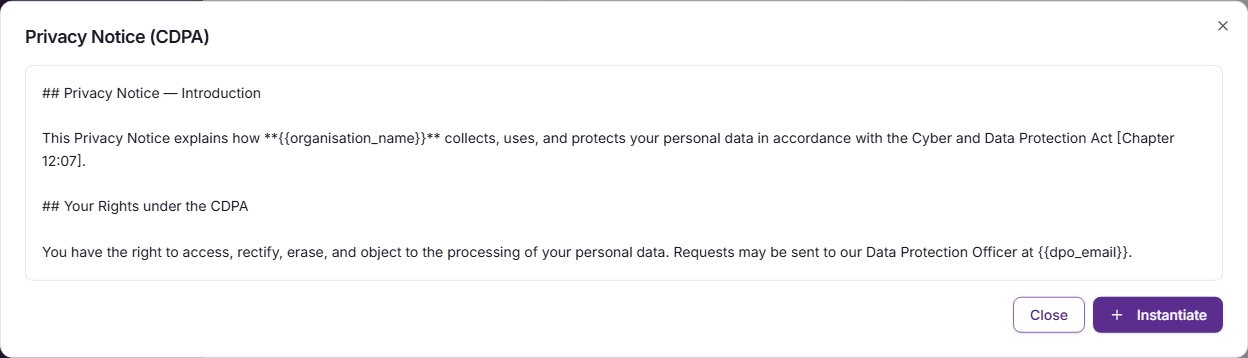
Read it first. Select Preview on a template. The window shows the text of the template. Select Close when you are done.
-
Add your copy. Select Instantiate, either on the card or in the preview. A message says the template was added to your vault.
-
Find and edit it. Open Files; the copy is there for you to open and change. See Upload and file your documents for how Files works.
Check it worked
- A message confirms the template was added.
- The copy shows in Files under your organisation.
If something goes wrong
- Instantiate is greyed out. The template library is not part of your plan, so the page is preview only. The plan message and the pricing page show how to add it.
- The preview shows "(empty)". The template has no text yet. Tell Assegai.
- You cannot see the copy in Files. Refresh the page, then search Files by the template's name.
Last checked against Trident on 2026-11-06.