
Step-by-step guide for client admins
Before you start
- Who can do it. A client admin.
- What you need. An invoice that is waiting to be paid. You find invoices in Billing; the invoice itself shows the amount, the due date and where to pay, and this guide does not repeat them. Prices are on the pricing page.
- For a bank transfer or cash payment, the proof: a bank slip or statement line, or for cash a receipt or signed acknowledgement.
Steps
-
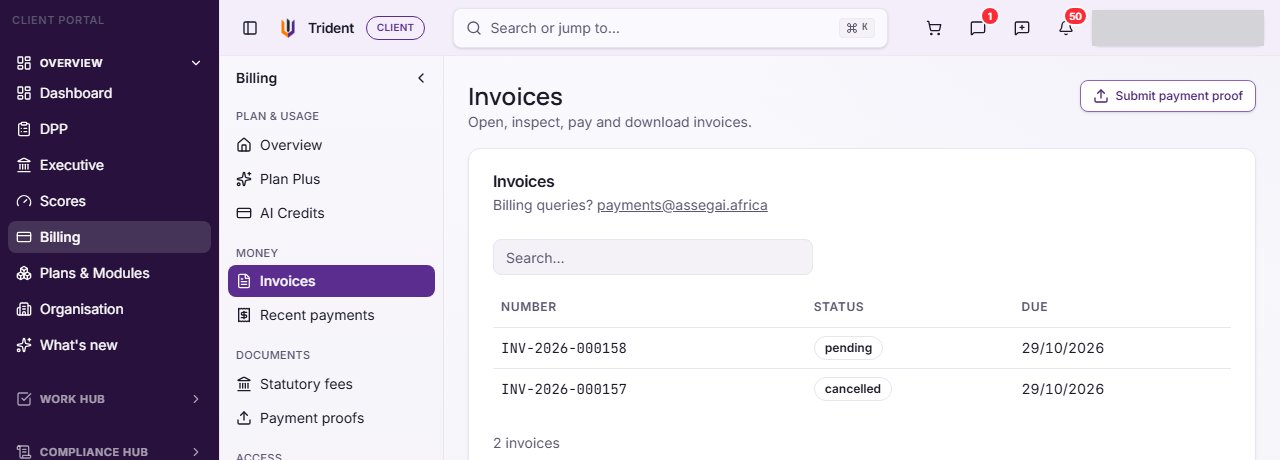
Open the invoice. In the left menu, under Overview, select Billing, then Invoices. Select the invoice to open it. To go straight to the proof form instead, select Submit payment proof at the top of the page. The invoice sheet shows the invoice itself, and Download PDF saves a copy.
-
Check it. Read the items and the payment details on the invoice. If it is wrong, see Amend invoice… under "If something goes wrong" before you pay.
-
Choose how to pay. Under Pay this invoice, pick a method. The invoice does not change when you pick or switch a method.
- Card. You are taken to Stripe's checkout to pay, then returned to Billing, which confirms the payment.
- Bank transfer. Transfer to the account the invoice shows under How to pay, quote the invoice number as the payment reference, then select Submit proof of payment.
-
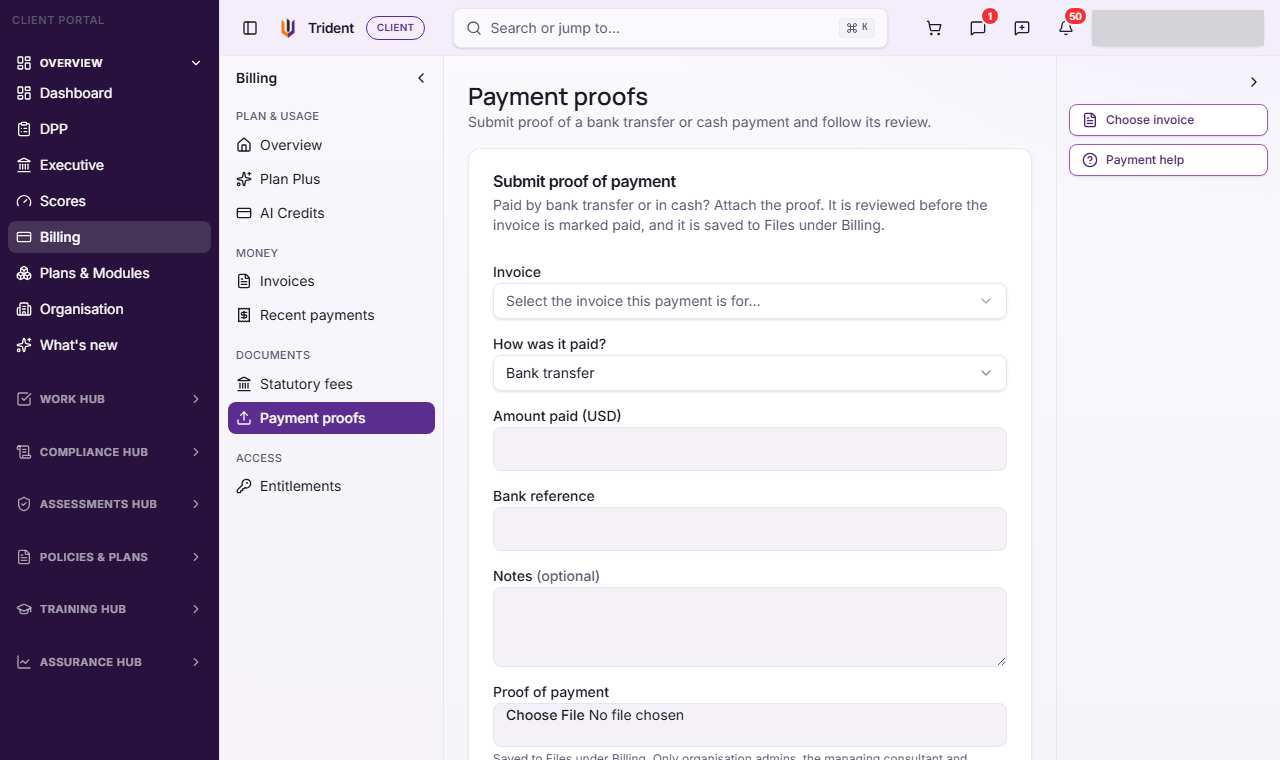
Send your proof (bank transfer or cash). Under Billing, Payment proofs, the form opens with the invoice already chosen if you came from the invoice. Check Invoice, say How was it paid? (bank transfer or cash), enter Amount paid (USD), add the Bank reference (for cash, the receipt number if there is one), add Notes if useful, attach the Proof of payment, and select Submit proof. The file is saved to Files under Billing, and only organisation admins, the managing consultant and Assegai can open it. Cash is recorded only through this form; the invoice has no cash button. If you need the bank details again, Payment help shows them.
-
Wait for the review. Your proof appears under Proofs awaiting review. It is reviewed before the invoice is marked paid. The screen gives no time for the review; the invoice status changes once it is done.
-
Get your receipt. Once a payment is confirmed it shows under Recent payments, with a Download link for the receipt. A paid invoice also offers its receipt when you open it.
Check it worked
- A card payment returns you to Billing, and the invoice shows as paid after Trident confirms it.
- A bank or cash payment shows under Proofs awaiting review, then under Recent payments once it is confirmed.
- The invoice's status in Invoices changes to paid.
If something goes wrong
- There is no Pay this invoice section. Only an invoice that is pending or overdue can be paid. A voided invoice says it can no longer be paid and links to the invoice that replaced it. Pay the replacement, never the voided number.
- The invoice is wrong. Select Amend invoice… and give a reason. This cancels the invoice and sends its items back to your cart. When you check out again, a new invoice with a new number is issued. Amend only invoices made from your cart.
- A card payment does not show yet. Billing keeps checking for a short while after you return. Refresh the page after a few minutes.
- A proof is refused or an upload fails. The message under the form says why. Check the file and the amount, and send it again.
- You need to ask about an invoice. The Invoices section shows the billing contact.
Last checked against Trident on 2026-11-06.