
Step-by-step guide for client admins and client users
Before you start
- Who can do it. A client admin or a client user. An Executive viewer can read the RoPA but cannot change it.
- For an import, have your spreadsheet (.xlsx, .xls or .csv). It should list what you do with personal data, one activity per row, not a list of people. The file is read in your browser and is not uploaded.
- For an export, nothing to gather. The copy is made from your live activities as they stand now.
Steps
Steps 1 to 6 import a spreadsheet. Steps 7 to 9 export your register.
-
Start the import. On the RoPA page, select Import from spreadsheet.
-
Choose your file. In Import a RoPA from a spreadsheet, select Choose a file and pick it. If the file has several sheets, pick the Sheet, and set the Row with the column headings. Select Continue.
-
Check each column. Trident suggests what each column fills. Change any that are wrong. A column left as Not imported is ignored. Select Continue.
-
Check the wordings. Under Wordings to check, review the wordings Trident matched, for example a lawful basis. Where it matched a vendor you already have, it says Matched your vendor; for a vendor it does not know, choose Leave out or Add as a new vendor.
-
Choose what to add. Tick the activities to add. If Trident has suggested a lawful basis, confirm it before the button to add becomes available.
-
Add them. Select the button that adds the activities as drafts. Everything is added as a draft that you review and approve; nothing is approved for you. Back returns to the previous step without adding anything.
-
Open the export page. On the RoPA page, in the card for assets and vendors no activity uses, select Export the register.
-
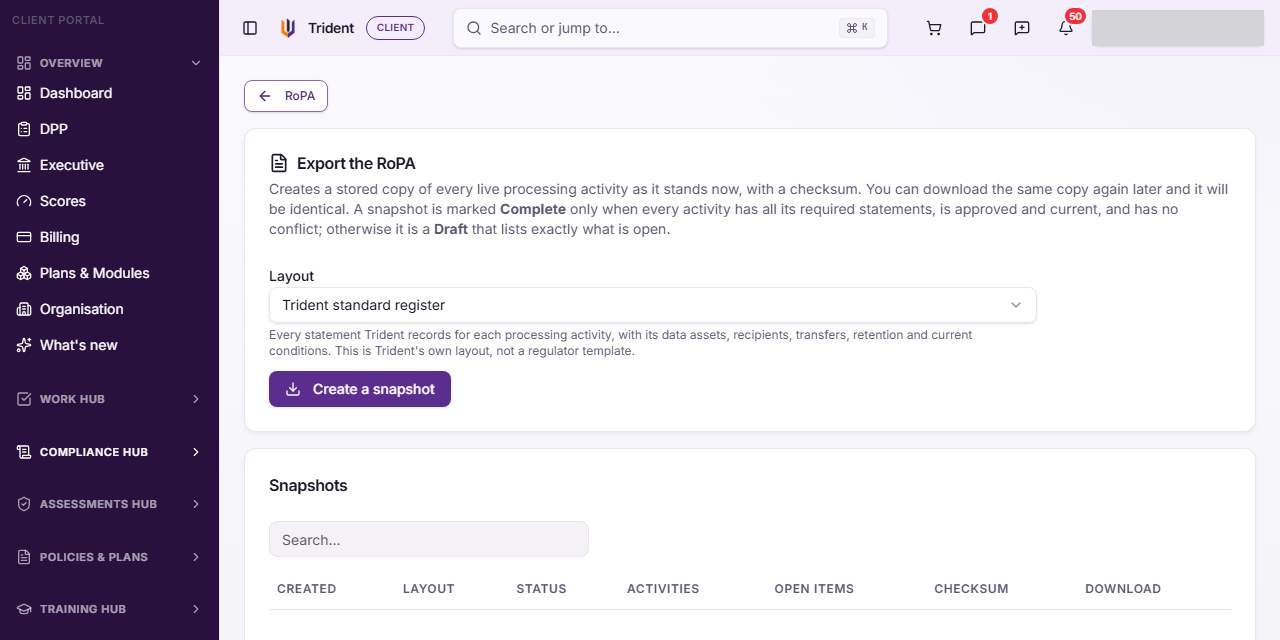
Choose a layout and create the snapshot. In Export the RoPA, pick a Layout and select Create a snapshot. This stores a copy of every live activity as it stands now, with a checksum. You can download the same copy again later and it will be identical.
-
Download it. Under Snapshots, each copy shows when it was made, whether it is Complete or Draft, how many activities and open items it holds, and its Checksum. Download it as Excel, CSV or JSON. A snapshot is Complete only when every activity has all its required statements, is approved and current, and has no conflict; otherwise it is a Draft that lists what is open.
Check it worked
- After an import, the new activities show on the RoPA page as drafts.
- After an export, the snapshot is in Snapshots, and its download opens in Excel, as a CSV or as JSON.
If something goes wrong
- The columns are not recognised. Check Row with the column headings and pick the right Sheet, then set each column by hand.
- The import button stays unavailable. A suggested lawful basis is waiting for your confirmation, or no activity is ticked.
- The export is marked Draft. Open the activities it lists as open and finish or approve them, then create a new snapshot. A snapshot never changes after it is made.
Last checked against Trident on 2026-11-06.