
Step-by-step guide for client admins and client users
Before you start
- Who can do it. A client admin or a client user. An Executive viewer can open and download files but cannot upload.
- What Files is. It is the central vault: documents you upload, and documents other modules create for you, all land here.
- What to have. The file itself, and a title you will recognise later.
Steps
-
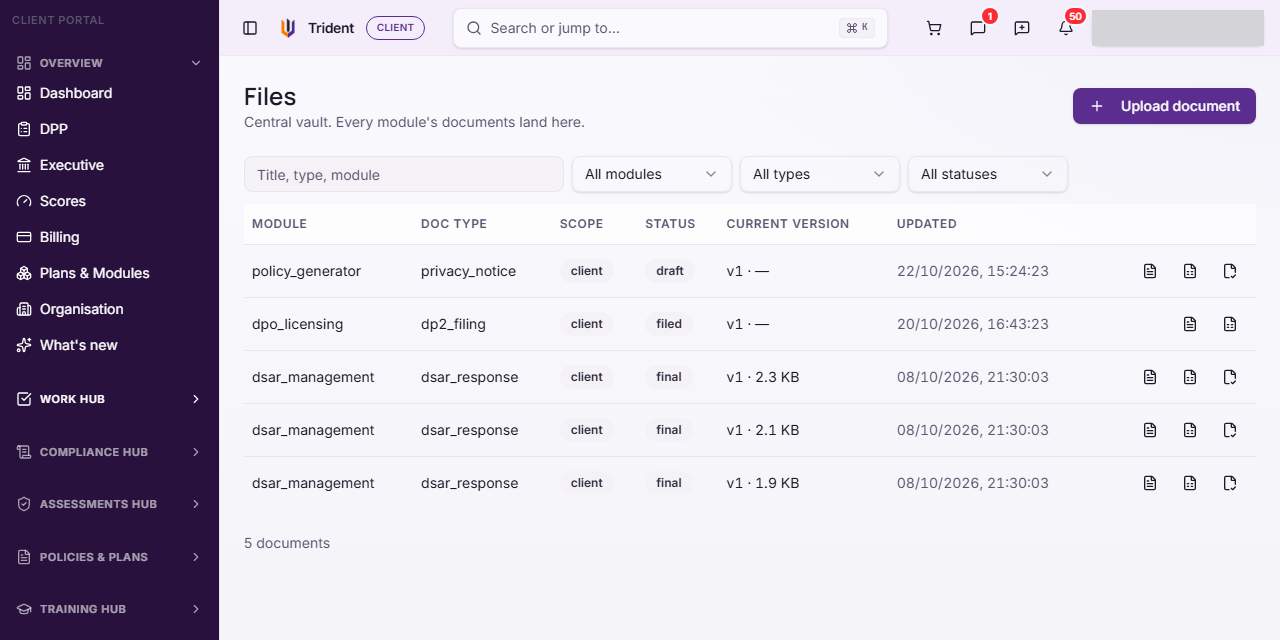
Open Files. In the left menu, open the Work Hub and select Files. The list shows each document with its module, type, status, Current version and last update. Search it, or narrow it with All modules, All types and All statuses.
-
Start an upload. Select Upload document.
-
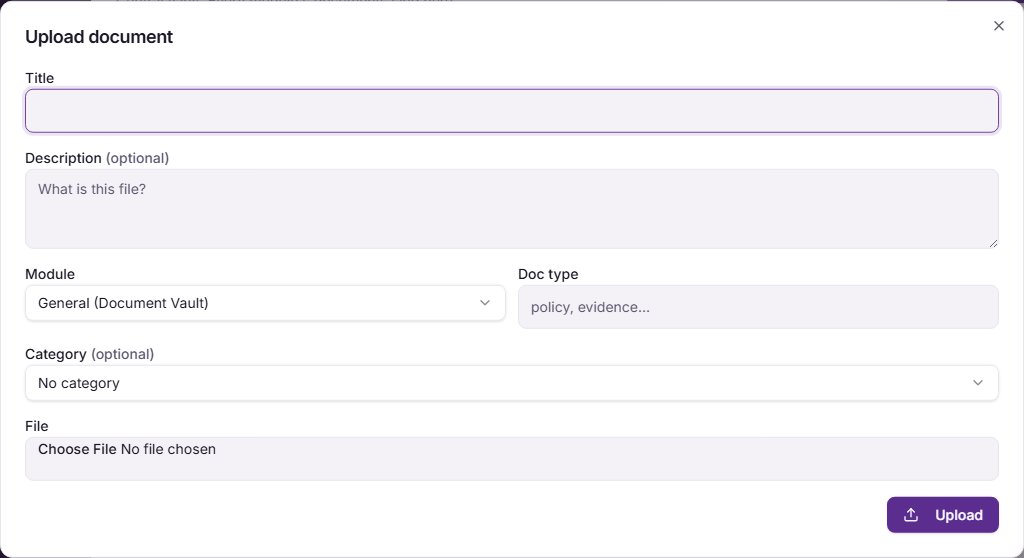
Describe the file. Enter a Title, and a Description if it helps. Choose the Module it belongs to, write a Doc type (for example policy or evidence), and pick a Category if one fits. Then choose the File and upload it.
-
Add a new version later. Select a document's row to open its version history, then Upload new version. Earlier versions stay in the history.
-
Download it. For an uploaded file, use Download original in the version history, or the download icon on the row. A document Trident made for you can be saved with Render PDF or Render Excel.
-
File a snapshot, if you need one. The file icon on a row, File now, writes an Immutable snapshot of the document as it stands. A filed snapshot cannot be changed afterwards, so use it for the version you want to keep as a record. A document that is already filed or archived has no File now icon.
Check it worked
- The document shows in the list with its title, module and status, and a message confirms the upload.
- A new version raises the Current version number.
- A filed document shows the Immutable snapshot marker in its history.
If something goes wrong
- There is no Upload document button. Your role may be Executive viewer, or your organisation's records may be read-only.
- The upload fails. The message says why. Check that you chose a File, and that it opened normally on your computer.
- You cannot find a document. Clear the three filters, then search by title, type or module.
- You filed the wrong version. A filed snapshot cannot be edited. Upload the right version as a new version and file that one.
Last checked against Trident on 2026-11-06.