
Step-by-step guide for client admins and client users
Before you start
- Who can do it. A client admin or a client user can run the stages. Two different people sign at the end.
- What the screens are. They cite provisions of the law in places. This guide does not repeat them. The tool's own briefing says it "accelerates the assessment; it does not replace the DPO's judgment, and it is not legal advice."
- What to have. A short name for the activity, the legal basis you rely on, a view of the data and who handles it, and the names of your DPO of record and an authorised representative.
Steps
-
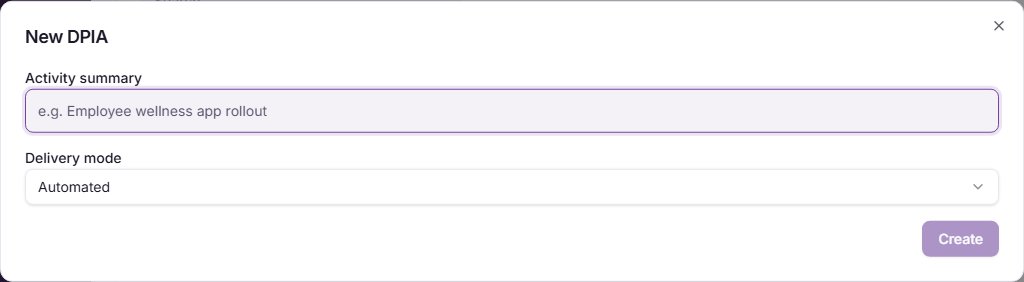
Start a DPIA. In the left menu, open the Assessments Hub and select DPIA. Select New DPIA. Enter an Activity summary and choose a Delivery mode: Automated, or the certified option the screen offers. Select Create.
-
Read the briefing. A new DPIA opens on a short briefing. Select Start DPIA when you have read it.
-
Screening. In Screening, tick every trigger that applies, tick the box for children's personal data if it applies, and write an Evidence note. Select Save screening. If any trigger or children's data is ticked, the DPIA is marked required and moves on. If none is, your answers stay as evidence and the DPIA does not continue.
-
Children check, if it appears. When children's data is involved, Children check asks for three confirmations: Guardian consent obtained, Age-appropriate notice delivered and Mandatory DPIA acknowledged, and for notes on how age and consent are handled. Select Save confirmations. The next stage opens only when all three are ticked.
-
Describe. In Describe, link a RoPA activity if there is one, choose the Legal basis, say whether sensitive personal information or a transfer abroad is involved, and select Save. If you choose legitimate interest, a Legitimate Interest Assessment appears; complete it and select Finalise LIA. Then fill in Parts A to E (the project and controller, the nature and scope, the data inventory, the data flows, and the risks and safeguards), selecting Save section after each.
-
Necessity and proportionality. Write the Necessity and the Proportionality answers, then select Save.
-
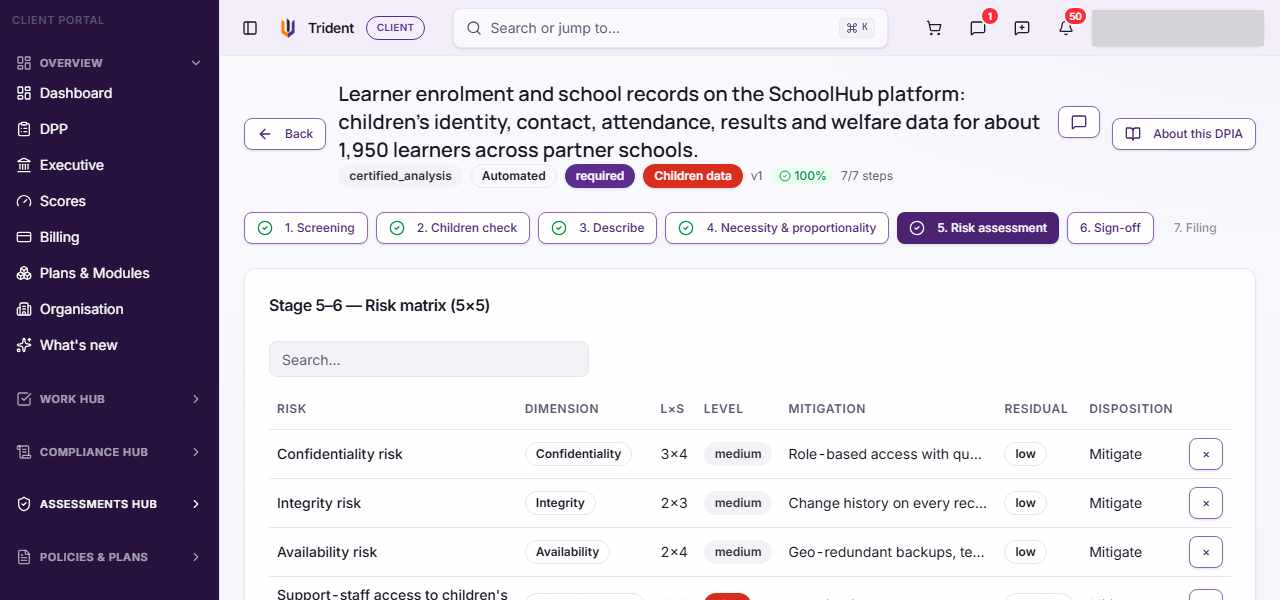
Risk assessment. In Risk assessment, give each risk a title in New risk, pick its Likelihood and Severity from 1 to 5, and choose a Dimension (confidentiality, integrity or availability). Trident works out the band from your two picks. For a risk that is not low, enter the mitigation, the residual likelihood and severity, and a Disposition. Select Add risk. Seed from Part E creates draft risks from your Part E answers, ready for you to score.
-
Sign-off. Once the risk stage is complete, continue to Sign-off. The DPO of record enters a full name and selects Sign as DPO. The Authorised representative enters a full name and title and selects Sign as representative. The screen does not accept the same person for both.
-
The final stage. Filing is the last step, and applies to a DPIA that involves a transfer abroad. Where it is available, it records the filing in Trident: a snapshot is stored in your files and an entry is added to Authority Contact. Trident does not send anything to POTRAZ, so any submission to the authority is made by your organisation outside Trident. If Filing stays greyed out after both signatures, the screen does not say why: tell Assegai.
Check it worked
- The list shows the DPIA's stage and its steps complete, and its screening result.
- Each stage you saved shows as complete in the stepper.
- After sign-off, the DPIA shows both signatures.
- If you record a filing, the DPIA shows as filed, and the entry shows in Authority Contact.
If something goes wrong
- A step is locked. A step opens once the ones before it are done. For a DPIA with children's data, finish the Children check first.
- Save is greyed out. In Describe, the first Save needs a Legal basis. Elsewhere, your role may be Executive viewer, or your organisation's records may be read-only.
- Sign-off refuses the signature. The DPO and the representative must be two different people. Ask a second person to sign in their own account.
- Signatures disappeared. Changing the screening answers, legal basis, necessity or proportionality after sign-off clears both signatures. Make the change, then sign again.
- Filing is greyed out. It applies to a DPIA that involves a transfer abroad. If yours does and it is still greyed out after both signatures, tell Assegai.
Last checked against Trident on 2026-11-06.