
Step-by-step guide for client admins and client users
Before you start
- Who can do it. Members of your organisation with the Consent and Cookies module in the plan. Without it, the page shows an upgrade message.
- What this is. A way to record the purposes you ask people's consent for, set up a cookie banner and preference centre, and keep consent records. The page carries a note about how this module relates to the law; read it on the screen and check it with your DPO.
- What to have. A list of your purposes (for example analytics or marketing), the wording of your banner, and the link to your policy.
Steps
-
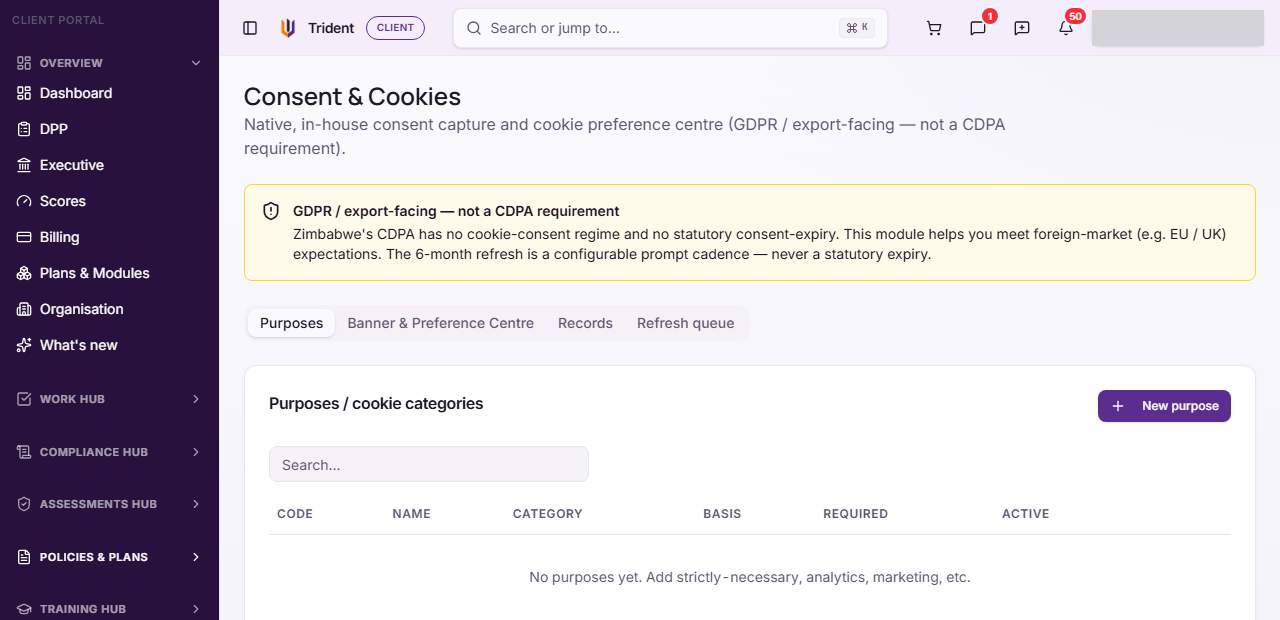
Open the module. In the left menu, open Policies & Plans and select Consent & Cookies. It has four tabs: Purposes, Banner & Preference Centre, Records and Refresh queue.
-
List your purposes. In Purposes, select New purpose. Fill in the Code, Name, Description, Category and Basis, set the retention in days, and tick Strictly necessary (no opt-out) if the purpose cannot be declined. Save it. A purpose can be deactivated later.
-
Set up the banner. In Banner & Preference Centre, fill in the Banner title, Banner body, Policy URL and Policy version, set the refresh prompt cadence, and choose whether to show Accept-all button, Reject-all button and Granular per-purpose choices. A live preview shows the banner as set. Select Save.
-
Publish. Select Publish once the configuration is saved. This marks the banner configuration as published in Trident. After that the button reads Re-publish.
-
Capture consent. In Records, select Capture consent, enter a Subject reference and an optional email, choose the answer for each active purpose, and select Capture. Each record shows its status. Withdraw records that consent was withdrawn.
-
Follow the refresh queue. Refresh queue lists subjects due for a refresh prompt. It is a list for you to act on; nothing is sent from it.
Check it worked
- Your purposes show in Purposes.
- The preview matches the banner you set, and the button reads Re-publish once published.
- Each captured consent shows in Records with its status.
If something goes wrong
- Capture says there are no active purposes. Add or reactivate a purpose first.
- Publish is missing. Save a banner configuration first.
- The page shows an upgrade message. The module is not in your plan. See the pricing page.
Last checked against Trident on 2026-11-06.