
Module guide for client admins and client users
What it is
The Controls Register lists the technical and organisational measures that protect your data. For each one it shows where the measure applies, who owns it and whether it has been tested and shown to work. A control only counts as verified once it has been tested.
When to use it
- You want to record which safeguards you really have, and where.
- You want to show a risk is being addressed by something that has been tested.
- You are acting on Trident's suggestions, taken from the data assets you hold.
What to gather first
- For each control, the places it applies: the whole organisation, a data asset or a vendor.
- A person who owns it.
- For a test: what was checked, what was found, the date, and any evidence you can attach from your files.
Steps
-
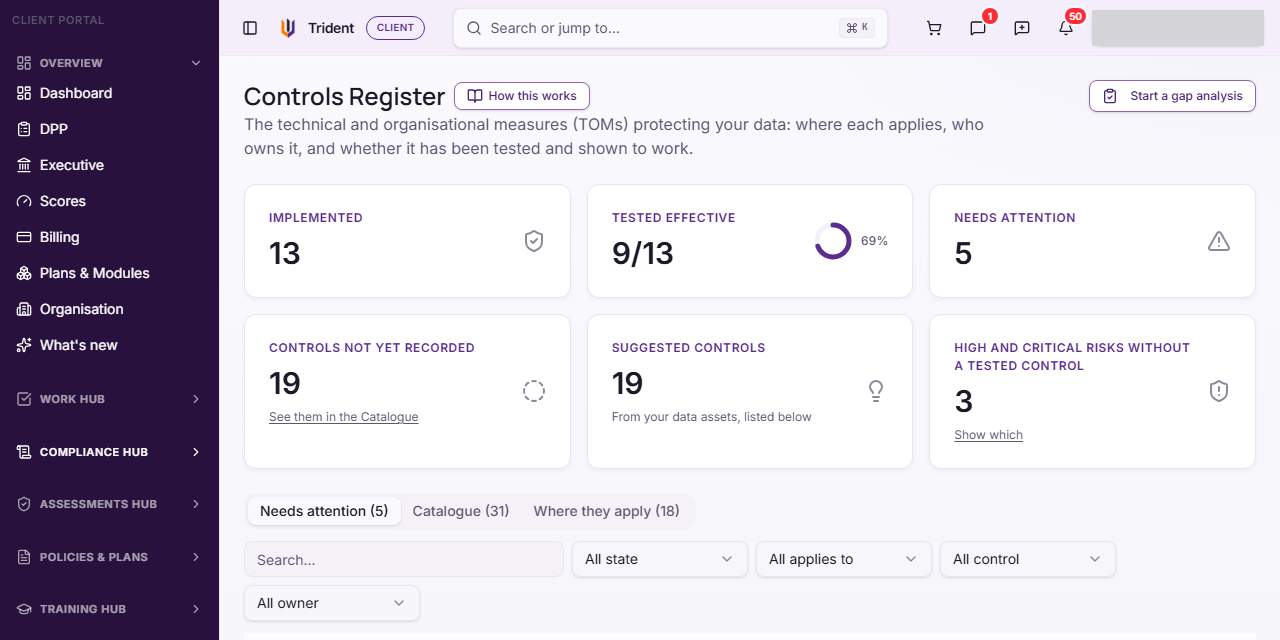
Open the register. In the left menu, open the Compliance Hub and select Controls Register. Tiles at the top count controls implemented, tested effective and needing attention. The register has three tabs: Needs attention, Catalogue and Where they apply.
-
Work through the suggestions. Control suggestions, below the table, comes from your data assets: each holds personal data but has no recorded control for a safeguard. Add control records it as planned, Add and open records it and opens the control, and Dismiss removes it. Not applicable records that it does not apply, and asks you why. Adding one records the control as claimed; it still needs an owner and a test.
-
Open a control. In the Catalogue tab, select a control to open its page. The page says what good looks like, how to test it, and where it applies.
-
Say where it applies. Select Add where it applies. Choose Applies to (the whole organisation, a data asset or a vendor), say Does it apply?, set the Status (Planned, Implemented or Retired), and choose an Owner. Under How it is tested, pick the Kind of test and how often it is re-tested, and describe How it is done here. Then select Add control.
-
Record a test. Select Record a test. Choose Which implementation?, say How was it tested?, pick the Result, enter Tested on and Result valid until, and write What was checked and What was found. Attach evidence if you have it, then select Record result. A planned control cannot be tested yet: once it is running, select Mark as implemented, then record the test. A correction is a new result, not an edit.
-
Link it to a risk. In the control's Linked risks section, use Link a risk: choose the risk, say How it helps, and select Link risk. See The Risk Register.
Example entries
- Control: access controls. Applies to: a data asset. Status: Implemented. Kind of test: Configuration check. Result: Effective, valid until the date you set.
- Control: staff training. Applies to: the whole organisation. Status: Planned, with an owner, until the first session has run.
Common mistakes
- Adding a control and stopping. A control with no owner and no test shows under Needs attention. Add both.
- Testing a planned control. A control must be implemented before it can be tested.
- Treating a test as a rating. A control's test result informs a risk's residual rating; it never sets it. You set the residual Level on the risk.
- Reading two tiles as one measure. The Controls Register counts high and critical risks without a tested control by their inherent level. The Risk Register's high residual risk tile uses the residual level. They answer different questions.
Related modules
How it links with other modules
Controls attach to the risks they address in The Risk Register, and the suggestions come from your data assets. A result is only counted while it is still valid, and a risk is shown as covered only when a linked control has tested effective.
Last checked against Trident on 2026-11-06.