
Module guide for client admins and client users
What it is
The Risk Register is your organisation's list of data-protection risks, each with an owner, a treatment plan and a review date. You can raise a risk yourself, or accept one that Trident suggests from your compliance posture, a DPIA, a Cross-Border TIA or another assessment. It is where a risk stays visible and owned after the assessment that found it is finished.
When to use it
- You have spotted something that could harm people's data or your organisation's standing, and you want one named person accountable for dealing with it.
- An assessment produced a risk and you want to keep tracking it.
- You are preparing for a review and want to show what you know about, who owns it and what you are doing about it.
What to gather first
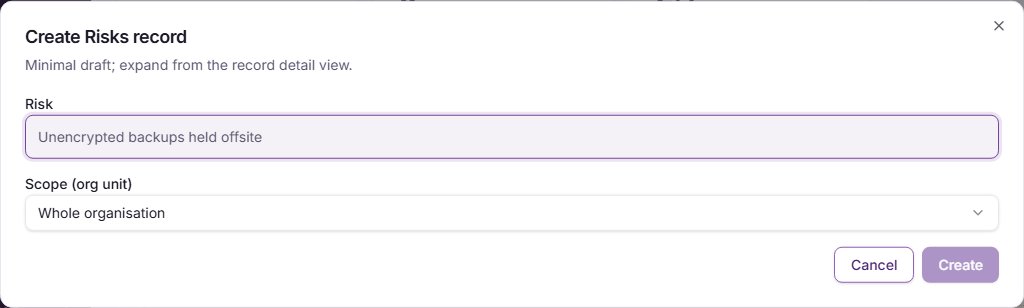
- A short title for the risk, in your own words. The screen's example is "Unencrypted backups held offsite".
- The person who will own it: the member accountable for treating it. Every risk needs one.
- A view on how likely it is and how serious it would be, and what you plan to do about it.
Steps
-
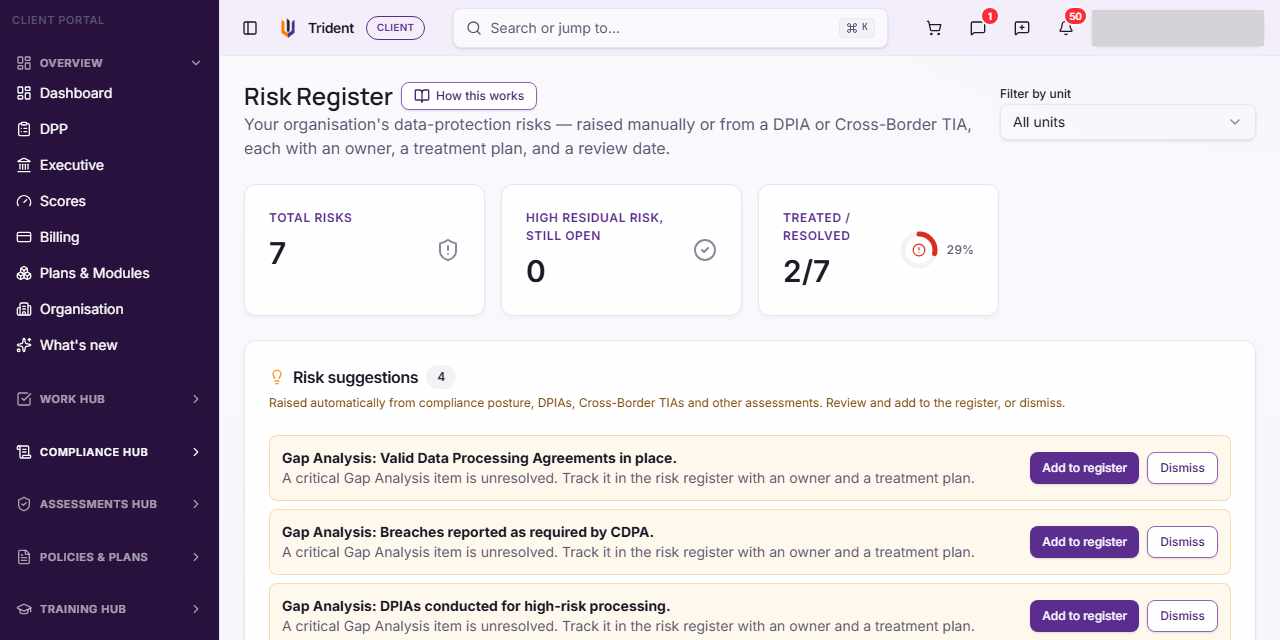
Open the register. In the left menu, open the Compliance Hub and select Risk Register. Tiles at the top count your risks, the high residual ones still open, and those treated or resolved.
-
Raise a risk. Select New Risks. Type the Risk title, choose the Scope (org unit), and select Create. Trident saves a draft with the title only and opens the risk's own page, where the rest is filled in. Cancel closes the window without saving.
-
Describe it. On the risk's page, choose a Category, check the Record status, and add a Description.
-
Score it by hand. Under Inherent risk (before treatment), pick the Likelihood and the Severity (each runs from 1 to 5, with a plain-words anchor for each number), then pick the Level yourself. The Level is your own judgement: Trident does not work it out from the two numbers. Do the same under Residual risk (after treatment) once you have a plan.
-
Treat it. Choose a Treatment approach, set the Treatment status, choose a Risk owner, write the Mitigation plan, and set Mitigation due and Next review. When you change the Treatment status, a box asks for the Reason for status change; it is kept with the record.
-
Save. Select Save. The screen lists anything that still needs attention, such as a missing title or owner.
-
Look at the suggestions. Risk suggestions lists risks Trident has raised from your assessments. Add to register puts one in the register with you as its owner, and Dismiss removes it from the list.
-
Link the controls that address it. Under Controls addressing this risk (shown when your plan includes the Controls Register), pick a control under Link a control, say How it helps, and select Link control. See The Controls Register.
Example entries
- Title: Unencrypted backups held offsite. Treatment approach: Mitigate. Mitigation plan: Encrypt the backup drives and keep the key apart from the drives. Risk owner: your IT lead.
- Title: Staff share files over personal messaging apps. Treatment approach: Mitigate. Next review: set a date to look at it again.
Common mistakes
- Leaving out the owner. Trident will not save a risk without one person accountable for treating it.
- Expecting the Level to fill itself in. You pick it. Set the residual Level to reflect what is in place now, not what you hope to do.
- Expecting a control's test to change the rating. A control's test result informs your residual rating; it never sets it.
- Dismissing a suggestion without looking. A suggestion is a risk Trident found in your own records. Read it first.
Related modules
How it links with other modules
Risks come in from your assessments, such as a DPIA or a Cross-Border TIA. A risk can link to the legal obligations it relates to, and to the controls that address it in The Controls Register.
Last checked against Trident on 2026-11-06.