
Step-by-step guide for client admins and client users
Before you start
- Who can do it. Members of your organisation.
- What the PAL is. The Privacy Activity Log is a timestamped trail of data-protection activities in your organisation. Many entries are written for you when work is completed in other modules. You can add your own note.
- Before you log. An entry cannot be edited or removed once logged, so write the summary as you want it to stay.
Steps
-
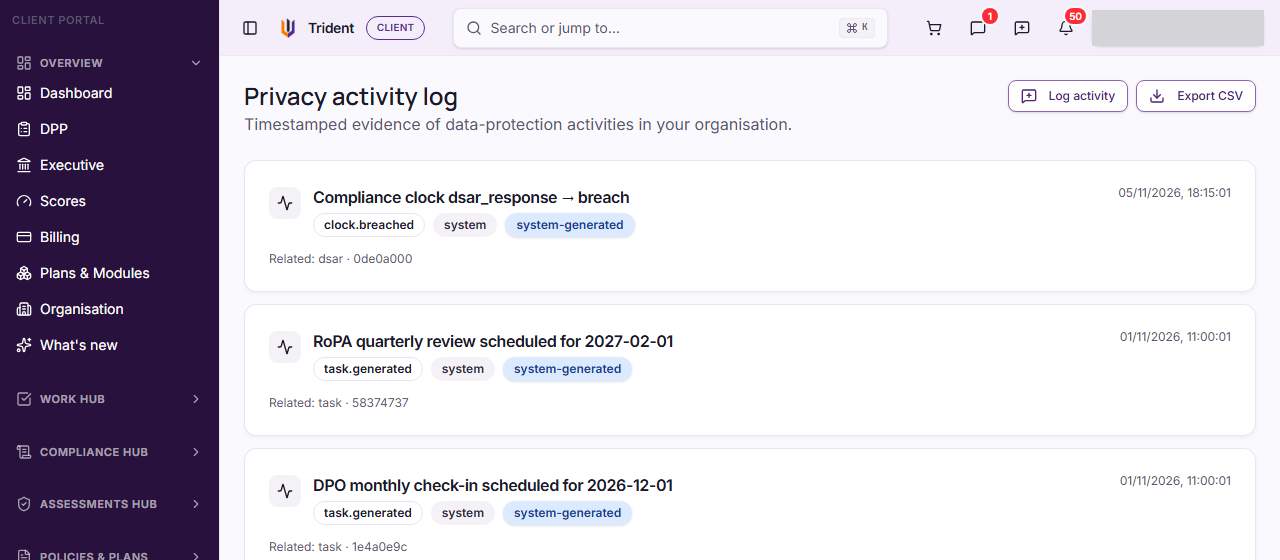
Open the log. In the left menu, open the Assurance Hub and select PAL. The page is the Privacy activity log. Each entry shows its summary, a type, who or what made it, and when.
-
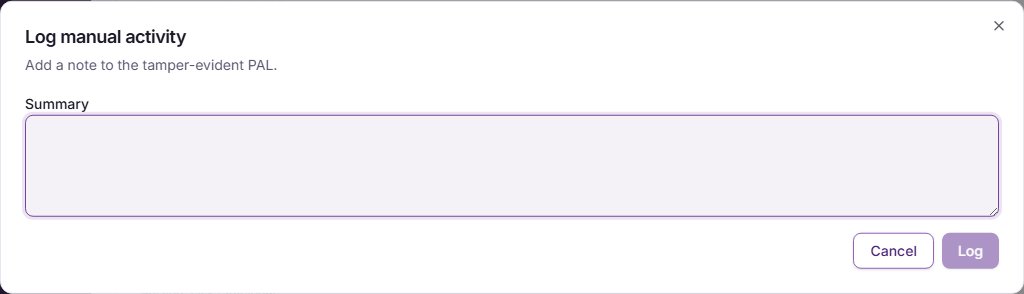
Add an entry. Select Log activity. In Log manual activity, write a Summary of what happened, then select Log. The entry joins the timeline with the current time. Cancel closes the window without logging anything.
-
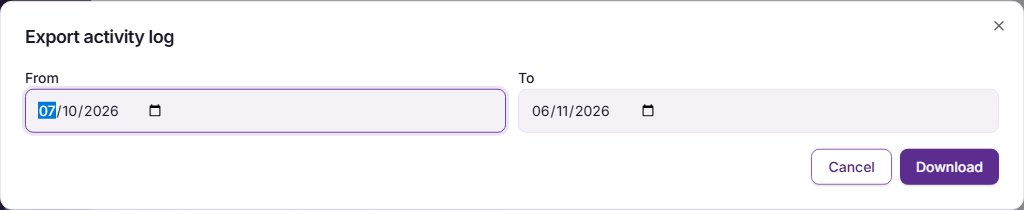
Export a date range. Select Export CSV. In Export activity log, choose the From and To dates, and select Download. The file is saved to your computer with one row per entry: when it happened, its type, who made it, the summary, and what it relates to. Exporting only reads the log.
Check it worked
- A new entry shows at the top of the timeline with your summary.
- The downloaded CSV opens in a spreadsheet and lists the entries in the dates you chose.
If something goes wrong
- The timeline says there is no activity yet. Nothing has been logged or recorded in your organisation so far.
- You logged the wrong text. An entry cannot be changed. Log a second entry that corrects it.
- The export is empty. Widen the From and To dates.
Last checked against Trident on 2026-11-06.